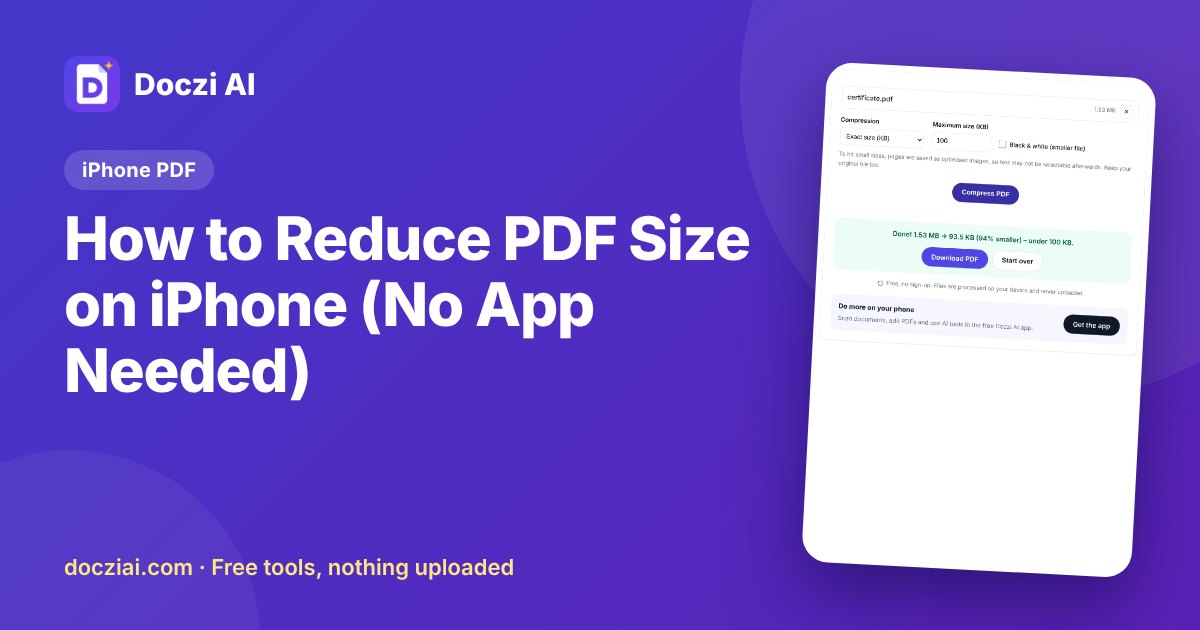
To reduce PDF size on iPhone, open Compress PDF in Safari, tap to select your file from the Files app, type the size limit in KB, and press Compress PDF. The smaller file saves to Files › Downloads, ready to upload. iOS has no built-in compressor, but you don’t need to install one: the browser does the work on your phone, and the PDF isn’t uploaded anywhere.
In this guide
Where your PDFs are on an iPhone
Before compressing, you need to find the file. iPhone PDFs usually live in one of these places:
- Files › Downloads: anything downloaded in Safari.
- Files › On My iPhone or iCloud Drive: files you saved there.
- Mail attachments: open the attachment, tap Share, then Save to Files.
- WhatsApp documents: open the document, tap Share, then Save to Files.
- Notes scans: open the scan, tap Share, then Save to Files. Notes scans are often large, so they’re a common reason to compress.
Compress it in Safari
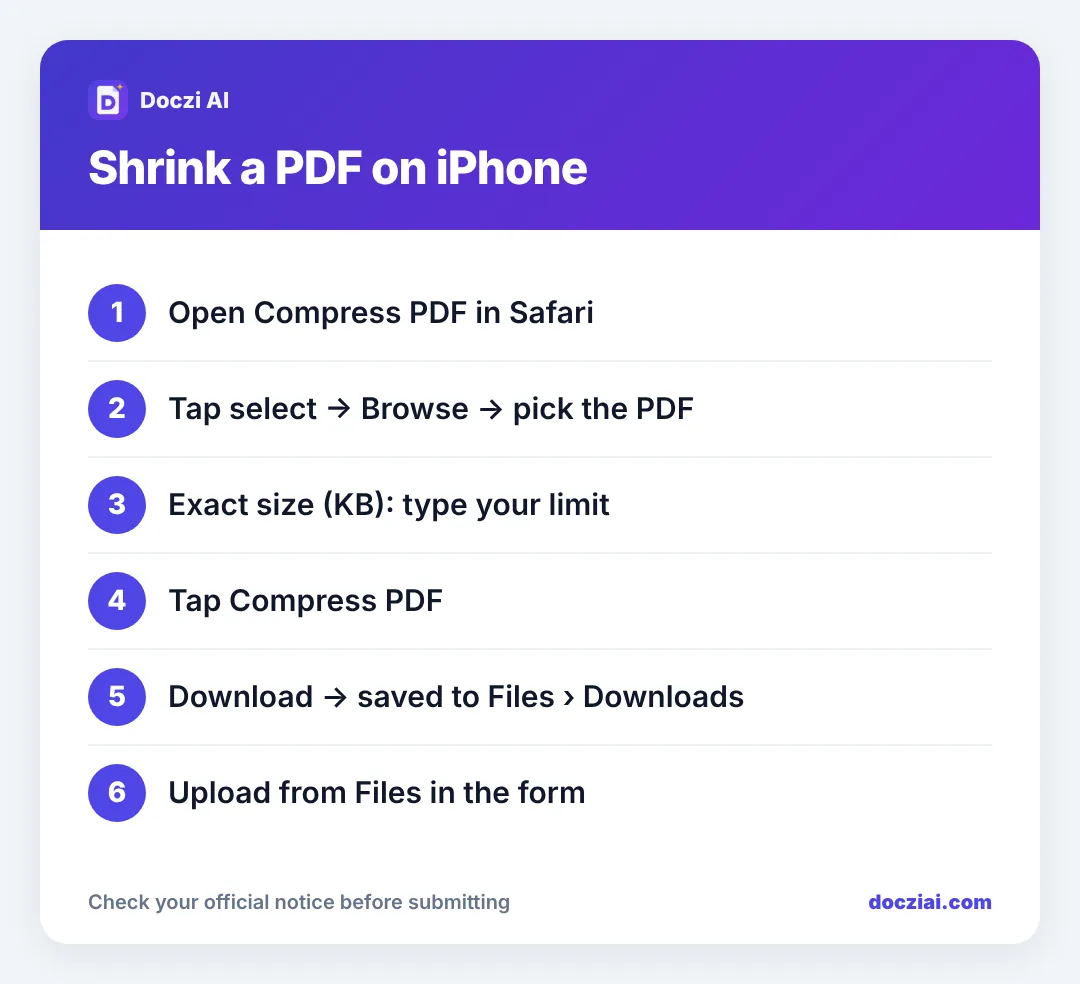
- Open docziai.com/compress-pdf in Safari.
- Tap the select button. In the menu choose Browse (or Choose File) and pick your PDF from Files.
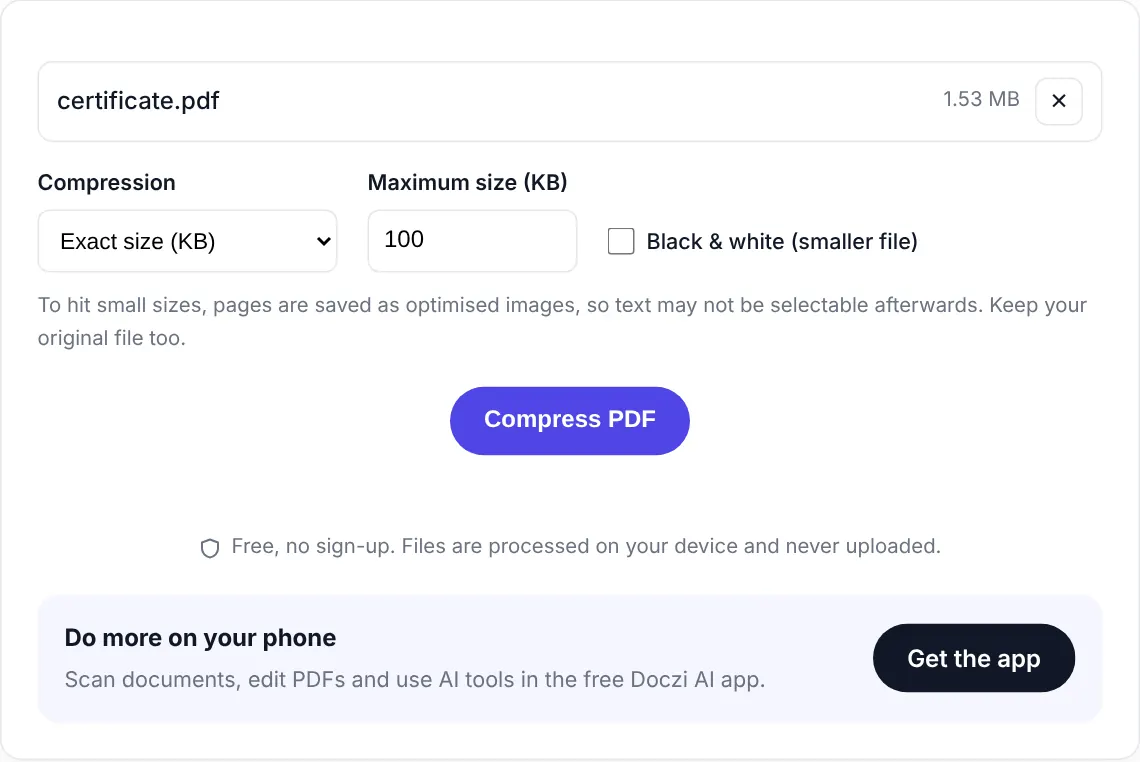
- Choose Exact size (KB) and type the limit from your form, for example 200. Or pick a level if you just want it smaller.
- Tap Compress PDF. When it finishes, tap download. Safari saves it to Files › Downloads.
- Back in the form, tap the upload button, choose Browse, and pick the new file from Downloads.
Shortcuts for common limits: 100 KB, 200 KB, 500 KB, 1 MB.
Tips for iPhone users
- Two files with the same name? The new one ends with “-compressed”. Check the size in Files (long-press › Get Info) so you upload the small one.
- Notes scans in colour are heavy. If the document is just text, the strong level gets it very small.
- Low Power Mode can slow down compression of long PDFs. It still works; give it a moment.
- Photos, not a PDF? Use JPG to PDF under 100 KB to convert and shrink in one go.
On a Mac?
Preview has a “Reduce File Size” export option, but it gives you no control over the final KB and often blurs text. The same browser tool works on a Mac too, with an exact KB target.
Turning iPhone scans into small PDFs
The Notes app’s document scanner is handy, but its PDFs are often several MB per page because they keep full colour detail. If you scan with Notes regularly, two habits help:
- Before saving, tap the filter button in the scanner and choose Black & White or Greyscale for text documents. The file is much smaller from the start.
- Scan only the pages you need. You can delete a page in the scan preview before saving.
Then compress the saved PDF to your form’s exact limit as described above. For documents you’ll print rather than upload, you can send the PDF to a print shop without WhatsApp; see printing from your phone.
FAQs
Does this work on iPad?
Yes, in Safari or Chrome on iPad, the same way.
Is there a size limit on the PDF I can compress?
No fixed limit, but very large PDFs (100+ pages) depend on your phone’s memory. Split work into parts if it struggles.
Why won’t my PDF open in the tool?
It may be password-protected. See password-protected PDF errors.