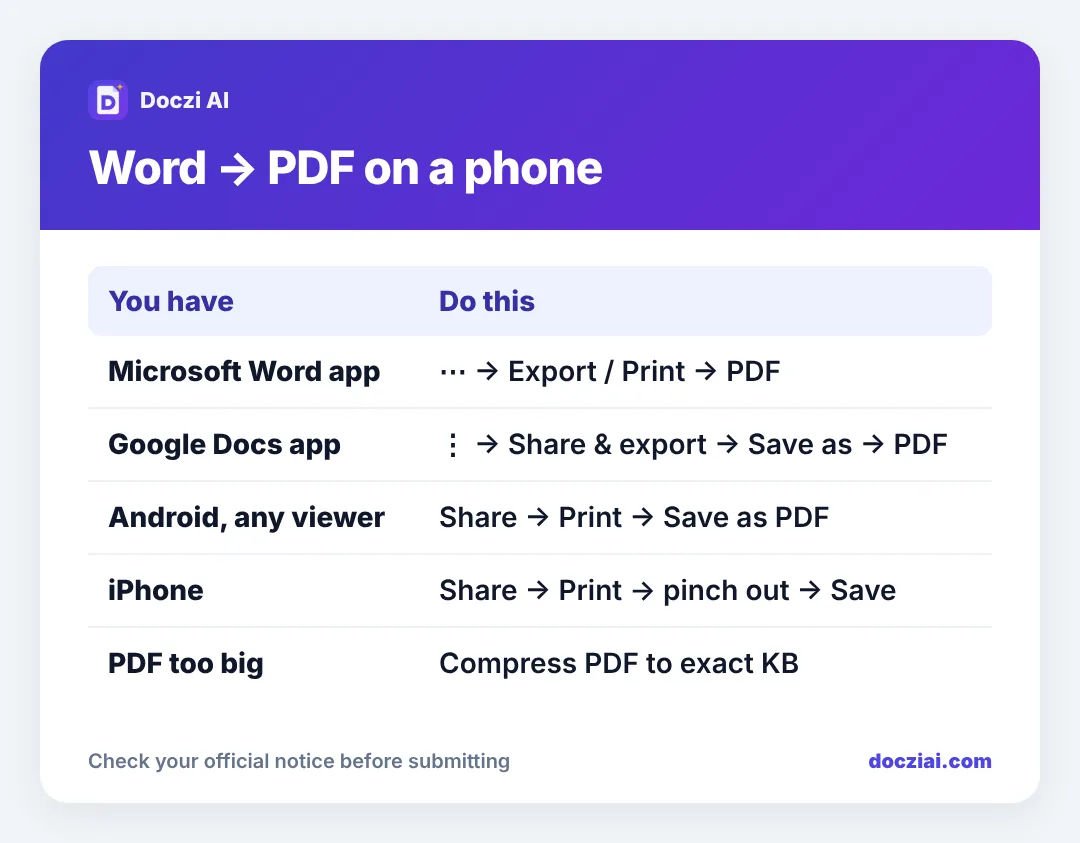
To convert a Word file to PDF on your phone, open it in an app that can read it and save or print it as PDF. In the Google Docs app: three dots › Share & export › Save as › PDF. In the Microsoft Word app: the menu › Export or Print › PDF. On any Android phone you can also use Print › Save as PDF, and on an iPhone Share › Print, pinch out, then Save to Files. Then check the layout and shrink the PDF if a form has a size limit.
In this guide
Why convert at all
Job portals, college forms and print shops ask for PDF because a PDF looks the same on every device. A .docx resume can open with broken spacing, missing fonts or a page that spills onto two. Sending a PDF avoids all that.
Method 1: Google Docs app
- Open the .docx in the Google Docs app (tap it in Files and choose Docs).
- Tap the three dots › Share & export › Save as.
- Choose PDF document and tap OK. The PDF is saved in your Drive; download it from there.
Method 2: Microsoft Word app
- Open the file in Word.
- Tap the menu (three dots or the file icon) › Export or Print.
- Choose PDF and save.
Method 3: Print to PDF (any Android)
If the file opens in any viewer that has a Print option, choose Print, set the printer at the top to Save as PDF, and tap the download icon. This works for Word files, web pages and emails alike.
iPhone
Open the document in Files (it previews Word files), tap Share › Print, pinch outwards on the preview to open it full screen, tap Share again and choose Save to Files.
Check the layout
Open the PDF and scroll through it. Phone apps sometimes change fonts that aren’t installed. Look for:
- Text running onto an extra, nearly empty page.
- Tables split between pages.
- A photo on a resume that moved.
Fix it in the Word file (a smaller margin, one line less) and convert again.
Fit the size limit
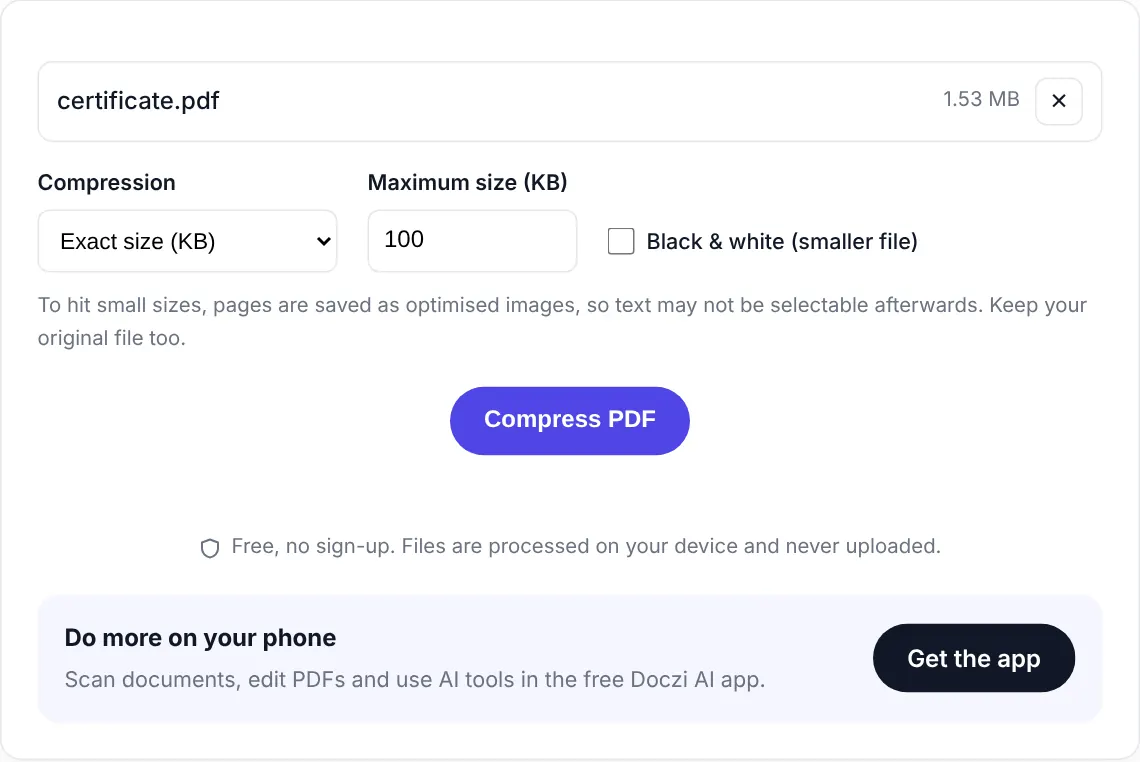
Text-only PDFs are small. Resumes with a photo, or Word files full of pasted images, can be several MB. Use Compress PDF and type the limit, for example 500 KB or 1 MB. Text in a real (not scanned) PDF stays sharp because only the images get compressed.
Need to join it with certificates? Use Merge PDF. To send it to a print shop without WhatsApp, use Doczi Drop.
Resume PDF checklist
Since resumes are the most common Word-to-PDF job, a few quick checks before you send one:
- File name: FirstName-LastName-Resume.pdf, not Document1.pdf.
- One or two pages, with no half-empty last page.
- Your phone number and email are correct and clickable.
- Photo (if you include one) isn’t stretched; see resizing without stretching.
- Under the portal’s size limit, usually 1 or 2 MB.
Printing your resume for an interview? Send it to the shop’s computer directly; see printing from your phone at a shop.
FAQs
Can I convert Word to PDF without any app?
On Android, yes, if the file opens in any viewer with Print. Otherwise Google Docs or Word is the easiest.
Why do my Hindi or regional language fonts look wrong?
The phone lacks the font used in the file. Convert on a computer that has the font, or use a common Unicode font in the document.
Is a PDF from my phone accepted by job portals?
Yes. A PDF is a PDF, wherever it was made.
Can I edit the PDF later?
Edit the Word file and convert again; that’s cleaner than editing the PDF.