
Free, no sign-up. Your photo stays on your device.
How to use it
- Type the size from your form. Width and height in pixels, and the minimum and maximum KB. Most forms print these in the “photo and signature” section of the notification.
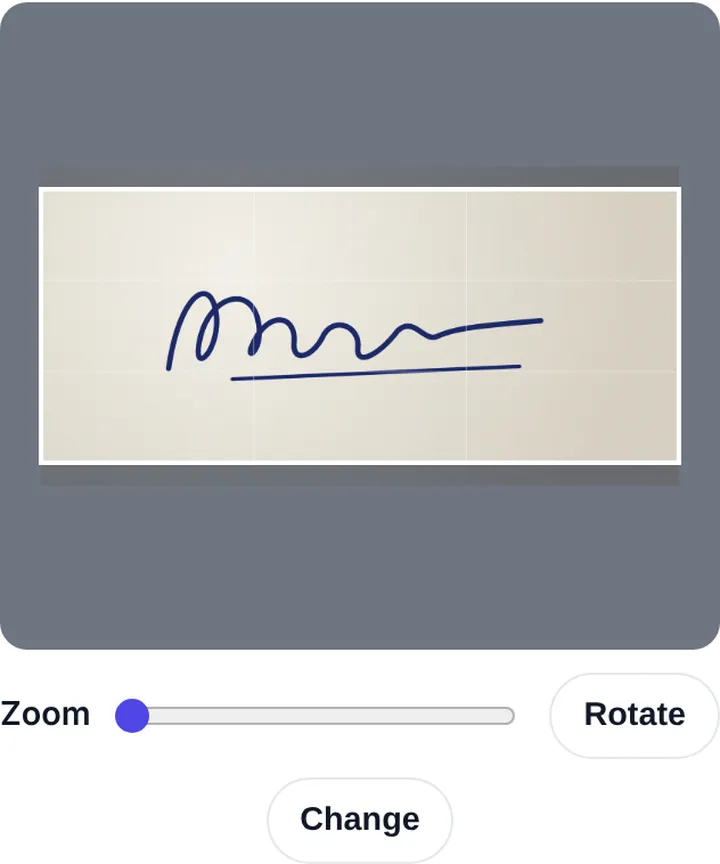
- Add your signature. Drag it to position it inside the frame and zoom if needed. Leave “Clean white background” ticked for signatures on paper.
- Press the button and download. You get a JPG with the exact pixels, a file size inside your range, and 200 DPI set in the file.
Getting a clean signature
Sign on plain white paper with a black or dark blue pen, a little larger than usual. Take the photo in daylight, straight from above, so there is no shadow of your phone on the page. The “Clean white background” option turns grey paper white and makes the ink darker, which is what scanners at exam centres expect.
Exam presets
Don’t know the size? Most exams are listed on our exam photo and signature size page, with the resizer already set up for SSC, IBPS, NEET, Police Bharti and more.
Frequently asked questions
How do I make an image exactly 20 KB?
Type the minimum and maximum KB in the size boxes, for example 15 and 20. The tool picks the best quality that fits, and if the image is too small it pads the file up to the minimum.
Will the image look blurry?
At normal form sizes like 200 × 230 px, a 20 KB JPG looks sharp. Blur only shows when you squeeze a very large image into a very small file.
Is my photo uploaded?
No. The resizing runs in your browser and the photo never leaves your device.