Forms reject password-protected PDFs because the portal can’t open them. To fix it, open your PDF in Chrome, enter the password once, then use Print › Save as PDF. The new copy has no password and uploads normally. This works on Android, Windows and Mac. On an iPhone, open the PDF, unlock it, and use Share › Print, then pinch out on the preview and save that.
In this guide
Only do this for your own documents, like your bank statement or e-Aadhaar. You need the password anyway.
Which documents come locked
- Bank statements emailed by banks. The password is often a mix of your name and date of birth, or your customer ID; the email says what.
- e-Aadhaar from UIDAI. The password is the first four letters of your name in capitals plus your year of birth. Details are on uidai.gov.in.
- Salary slips, Form 16, credit card statements.
- Some e-certificates from state portals.
Android: Chrome method
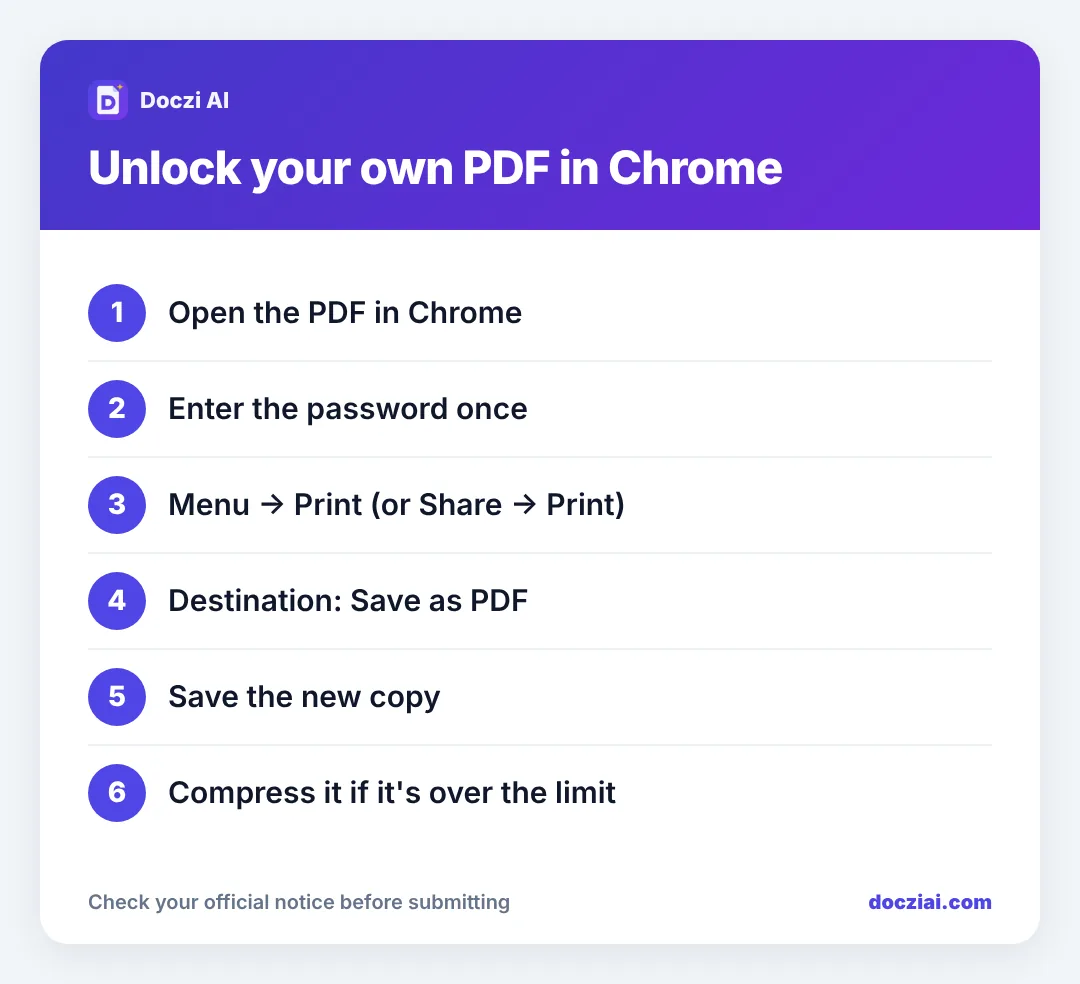
- Open the PDF in Chrome (from Downloads, tap it and choose Chrome; or drag it into Chrome on a computer).
- Type the password.
- Tap the three dots › Share › Print (on some phones it’s directly Print).
- At the top, set the printer to Save as PDF, then tap the PDF download icon.
- Save it with a new name like statement-unlocked.pdf.
If your phone opens PDFs in a different viewer, use that viewer’s Print option and choose Save as PDF the same way.
iPhone
- Open the PDF in Files and enter the password.
- Tap Share › Print.
- Pinch outwards on the page preview to open it full screen.
- Tap Share again and choose Save to Files.
Windows or Mac
Open the PDF in Chrome or Edge, enter the password, press Ctrl+P (Cmd+P on Mac), choose Save as PDF as the destination, and save.
Then fit the size limit
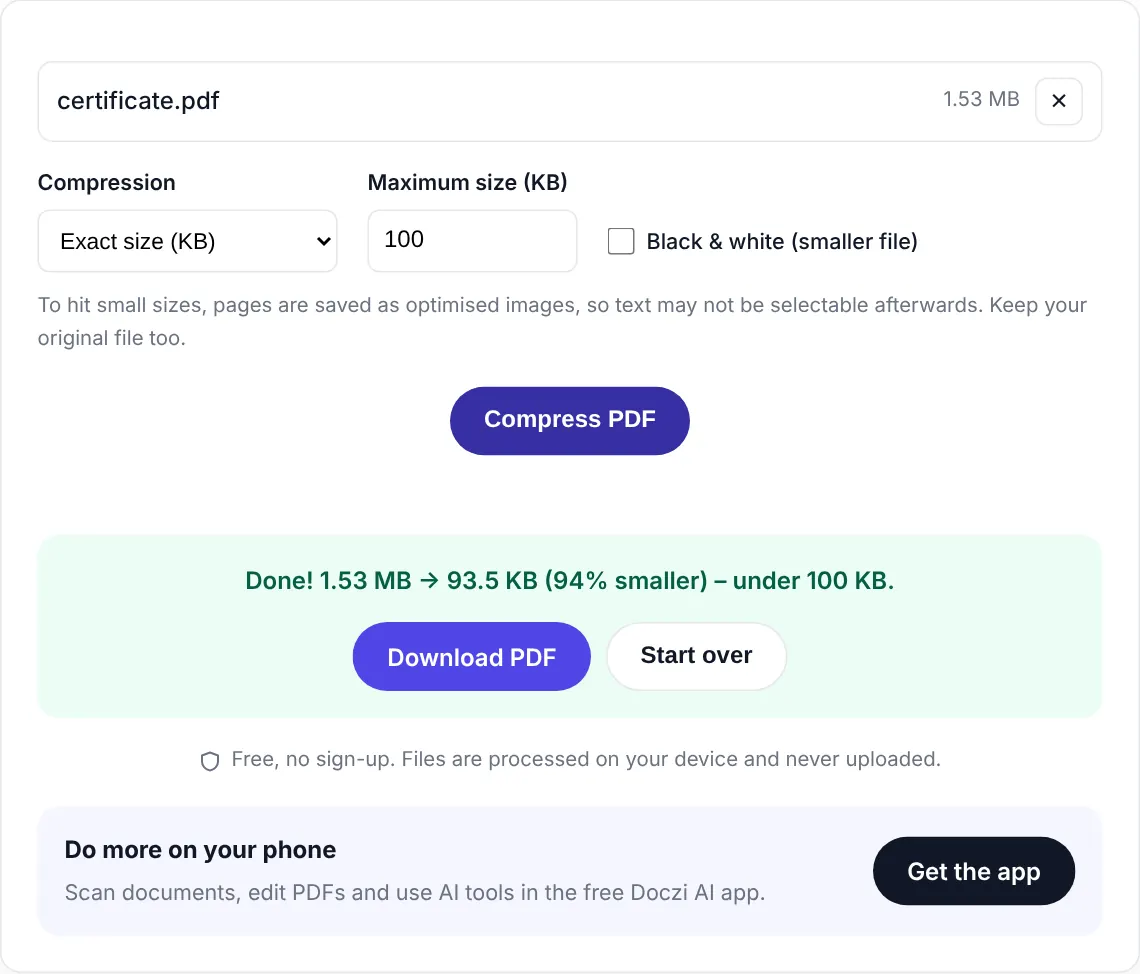
Saving through Print can make the file bigger. If the form has a limit, run the unlocked copy through Compress PDF with the exact KB. Our compressor stops and asks for a password-free file if you give it a locked one, which is why the unlock step comes first.
Bank statements: only the pages they need
Many forms (loans, scholarships, visa files) want the last three or six months. If your statement has 20 pages, you may be uploading far more than needed. In the print screen, choose the page range (for example 1–4) before saving. Smaller, and easier for the reviewer.
For admission and scholarship document sets, see certificate PDFs under 200 KB.
Why forms can’t take locked PDFs
When you upload a document, the portal usually checks it (file type, page count, sometimes a preview) and the officer later opens it during verification. A password-protected PDF can’t be opened without the password, so the portal either rejects it outright or accepts it and leaves an officer with a file they can’t read. Neither helps you.
That’s why most notices say “upload a PDF without password protection”, sometimes in small print. Saving an open copy is the expected step, not a workaround. Keep the original locked file in your own records; upload the open copy.
FAQs
Is removing the password legal?
For your own documents where you know the password, yes. You’re just saving an open copy for a form that requires it.
I forgot the password. What now?
Check the email that came with it, or download a fresh copy from your bank’s netbanking or the issuing portal.
Will the unlocked copy still be valid?
It has the same content. Some e-documents carry a digital signature that may show as “not verified” after printing; for uploads that’s normally fine.
Can I upload e-Aadhaar as it is?
Only if the form accepts locked files, which most don’t. Save an unlocked copy, or use the masked Aadhaar if the form allows it.