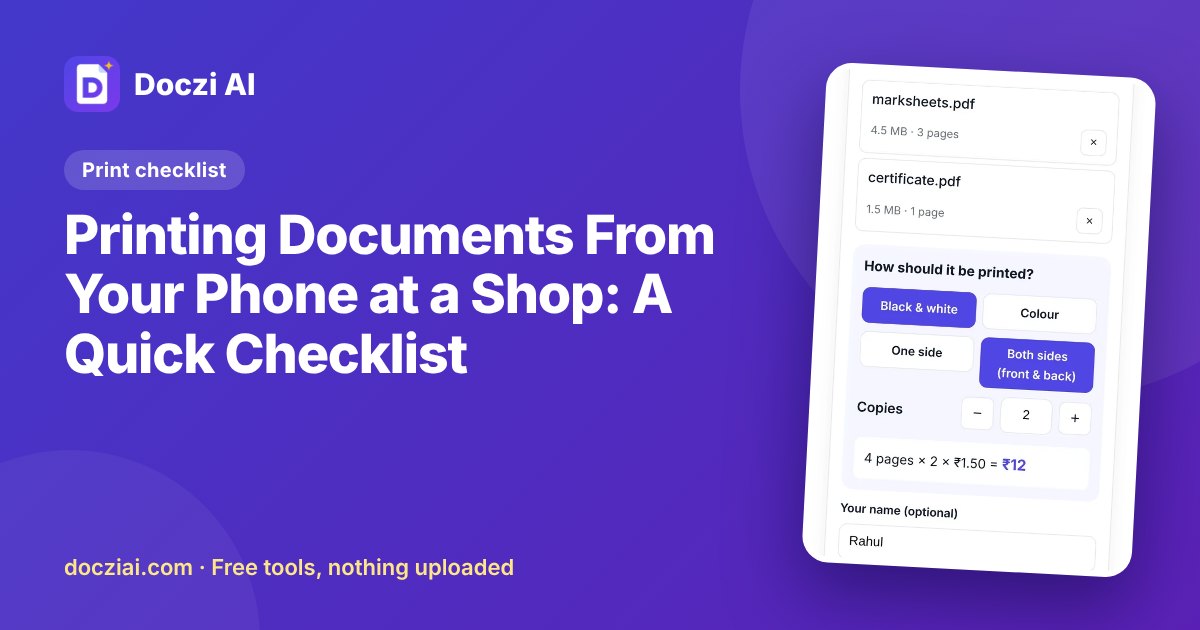
Before printing documents from your phone at a shop, get your files into PDF, check the pages and their order, straighten any crooked photos of documents, and decide colour, sides and copies. Then send the files in a way that doesn’t leave copies on someone’s phone. It takes five minutes at home and saves money, reprints and a long wait at the counter.
In this guide
1. Use PDF where you can
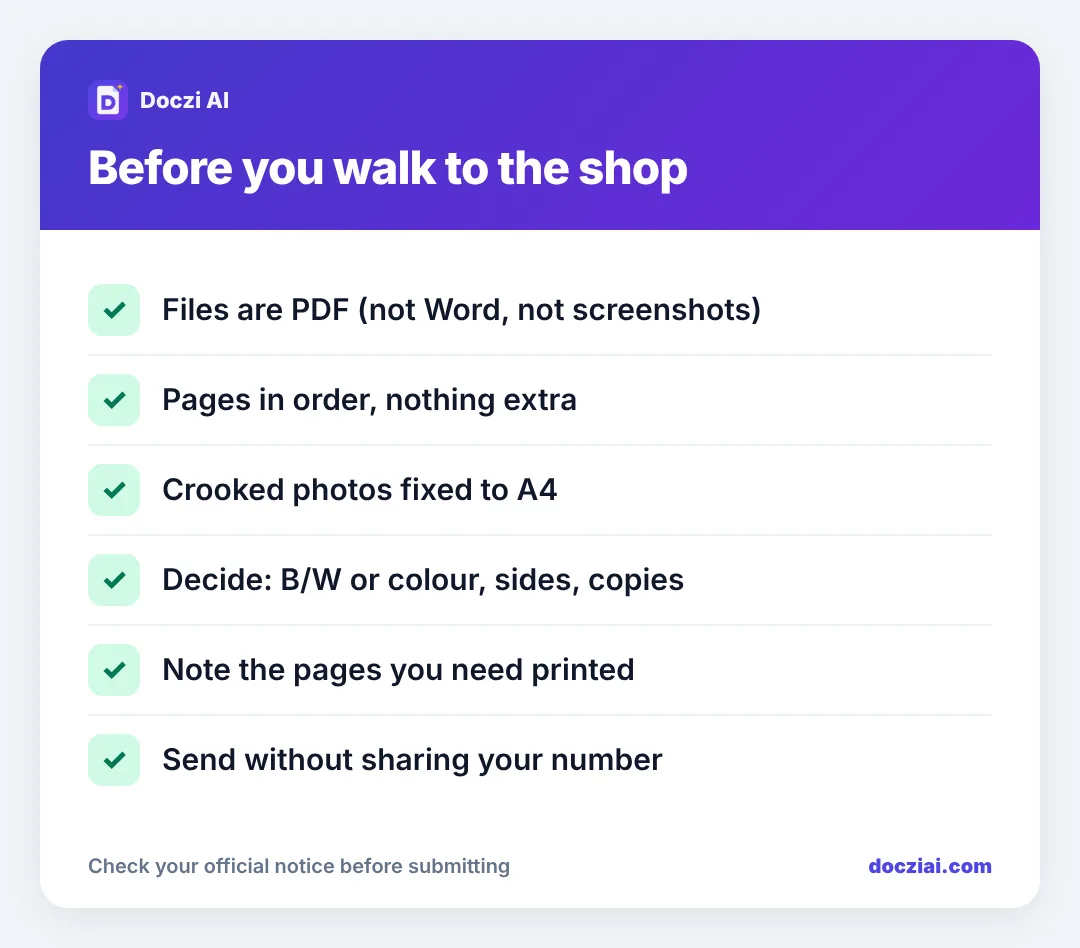
Word files can change layout on the shop’s computer: a resume that’s one page on your phone becomes two pages there. A PDF prints exactly as you see it. Convert first; see Word to PDF on your phone. Several photos of one document? Make them one PDF with JPG to PDF.
2. Check pages and order
Open each PDF and scroll through it. Remove blank last pages, wrong documents and duplicates. If you need everything as one file in a set order, combine them with Merge PDF.
3. Fix crooked photos
A tilted phone photo of a document prints with grey borders, a slanted page and dark shadows, which wastes ink and looks bad on a form. Straighten it before printing. Our guide on fixing tilted document photos shows how, and shops using Doczi Drop can do it with one button.
4. Decide what you want
- B/W or colour? Colour costs several times more. Certificates and forms usually look fine in black and white.
- One side or both? Both sides saves paper for notes and reports. Forms to submit are usually single-sided.
- How many copies?
- Which pages? “Pages 1–3 only” if you don’t need the whole file.
- Paper: normal A4, thick paper, or photo paper for photos.
Not sure about cost? See how print cost is calculated.
5. Send without giving your number
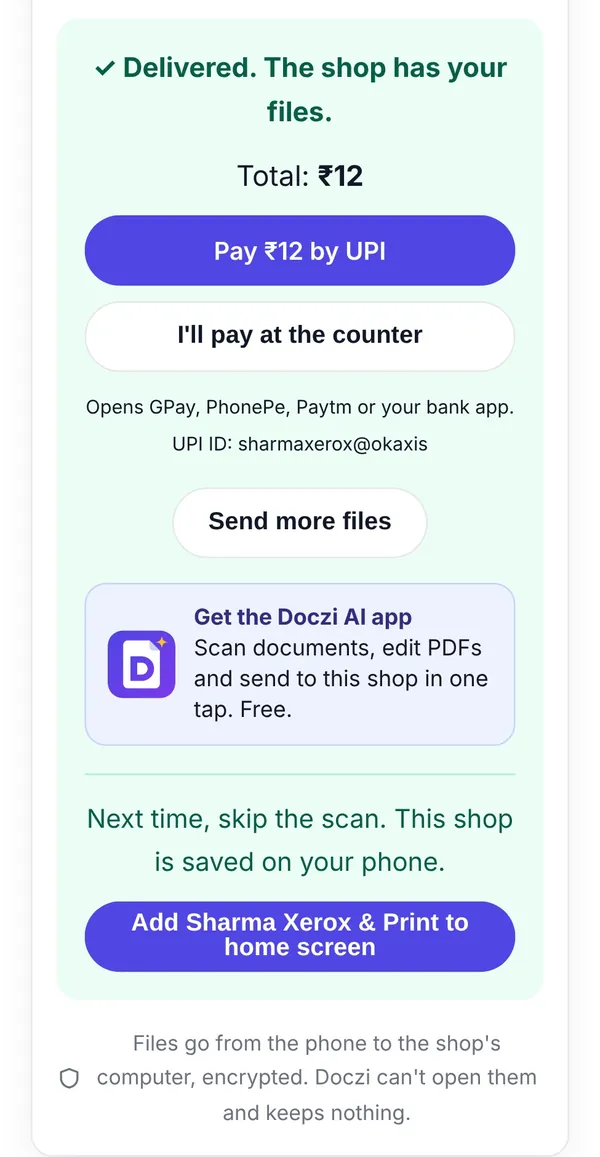
If the shop has a Doczi Drop QR, scan it with your phone camera, choose files, add a note with what you decided above, and press Send. The files land on the shop’s computer with your token number. You see the price before sending if the shop has added rates.
No QR? Ask them to set one up; it’s free and takes them five minutes. Meanwhile, a pen drive keeps your documents off their phone. Here’s why that matters for ID documents.
At the counter
- Check the first printed page before the rest are printed.
- Count pages and copies.
- Take all misprints with you if they contain personal details.
- Pay, and get a receipt if it’s for office reimbursement.
For regular customers: skip the scan
If you print at the same shop often, you don’t need to scan its QR every time. After your first send through Doczi Drop, the shop is saved on your phone. Next time, open docziai.com/drop and tap Send to [shop name]. Or press Add to home screen once and the shop gets its own icon on your phone, like an app. You can send files from home and pick up the prints later, as long as the shop’s page is open.
That’s handy for students who print notes every week, and for parents sending school forms to the shop near the school.
FAQs
Can the shop print directly from my phone?
Some printers support it, but most shops print from a computer. Sending files to that computer is the usual way.
Should I send photos or a PDF?
PDF for documents, JPG for photos you want printed as photos.
Next time, do I need to scan the QR again?
No. After the first send, the shop is saved on your phone. Open docziai.com/drop and tap the shop’s name, or add it to your home screen.