
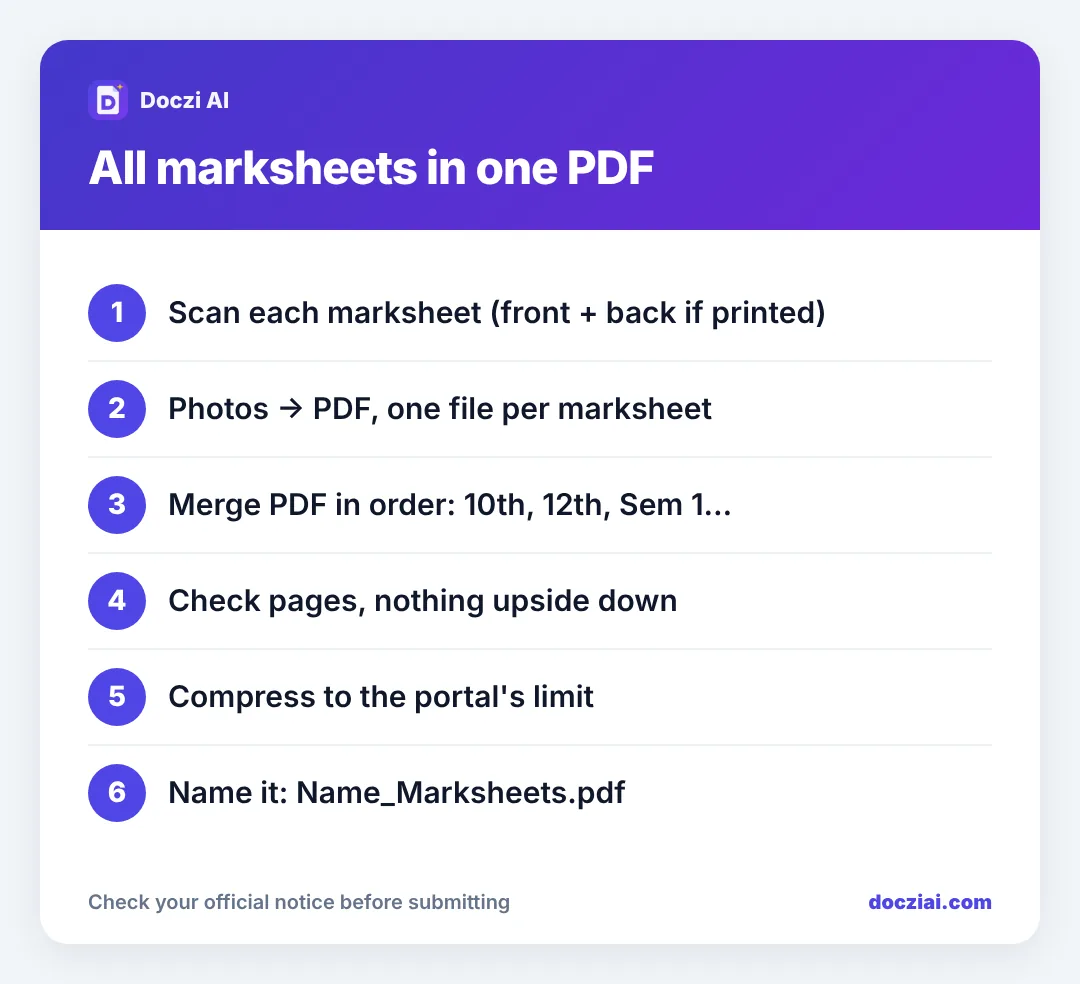
To make one PDF of all your marksheets for college admission, scan or photograph each one, turn the photos into PDFs, then join them with Merge PDF in order: 10th first, then 12th, then each semester or year. If the admission portal has a size limit, compress the merged file to that limit with Compress PDF. The whole thing takes ten minutes on a phone.
In this guide
Before you start: what the portal wants
Read the instructions for the document upload section. Admission portals usually say one of these:
- One PDF with all marksheets. This guide is for you.
- Separate upload for each. Then don’t merge; make one small PDF per marksheet.
- A size limit, like 1 MB or 500 KB for the combined file.
Also check whether they want the back side. Most marksheets have instructions printed on the back that nobody needs, but some universities print grades on both sides.
Step 1: Get each marksheet into PDF
If you have a DigiLocker copy, download it as PDF; it’s a clean, small file. For paper marksheets, photograph each one flat in daylight (our phone scanning guide shows how), then make a PDF with JPG to PDF. Make one PDF per marksheet so you can reorder them easily later.
Step 2: Merge in order
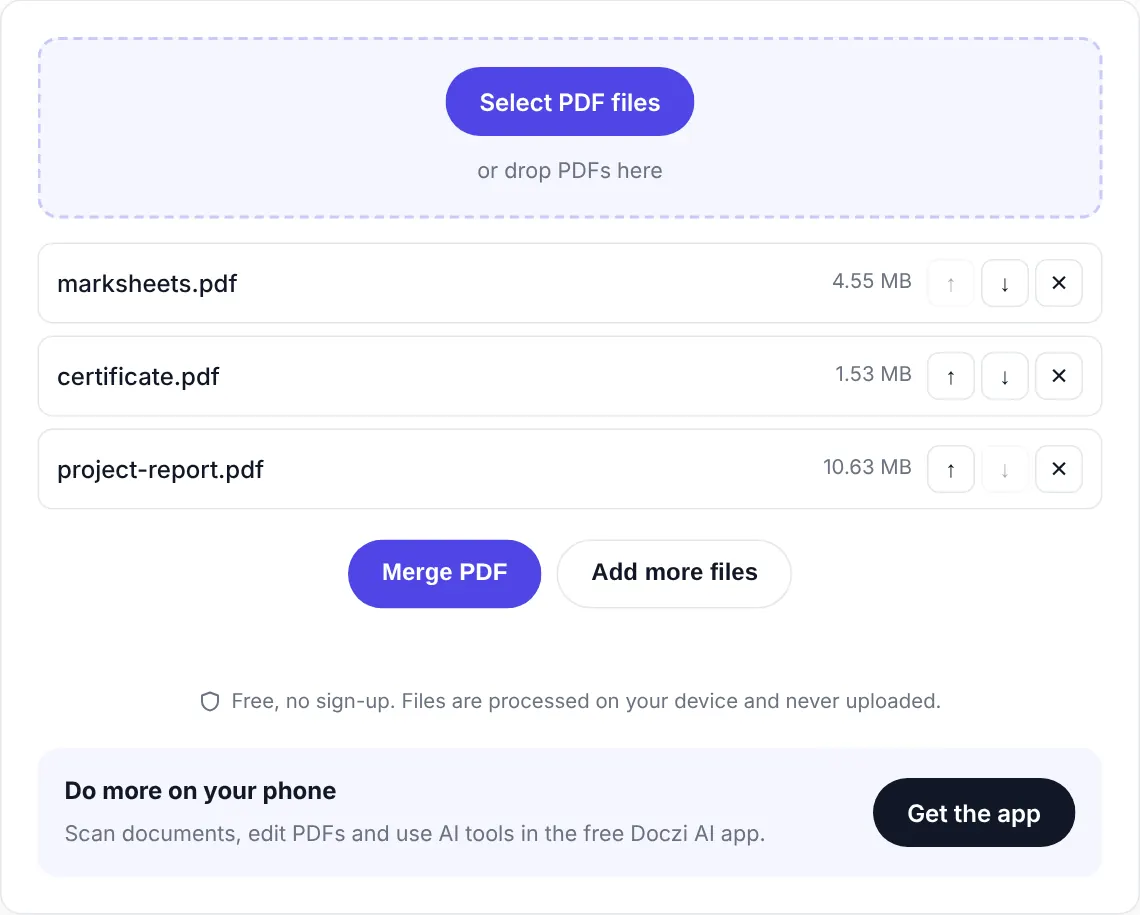
- Open Merge PDF.
- Select all the marksheet PDFs.
- Arrange them with ↑ and ↓: 10th, 12th, then semesters in order. Admission staff check these quickly; a jumbled file slows them down and can raise questions.
- Press merge and download.
Step 3: Fit the size limit
Eight scanned pages can easily be 10–20 MB. Open Compress PDF, choose Exact size (KB), type the limit (for example 1000 for 1 MB), and download. Then zoom in on the result: roll numbers, subject marks and the university seal should be readable. If not, see why scans get big and how to fix it.
Step 4: Name it sensibly
Rename the final file to something like RahulSharma_Marksheets.pdf. Short names with no spaces avoid odd upload failures on older portals, and if you’re emailing it, the college knows what it is.
Checklist before uploading
- Every page present, in order.
- Nothing upside down or sideways.
- No pages from other documents mixed in.
- Readable when zoomed.
- Under the size limit.
Keeping all of this ready before admission season saves a lot of panic; we explain a simple system in organising documents for online forms.
What admission portals commonly ask for
Every university is different, but these come up again and again during admission season:
- 10th marksheet and passing certificate (for date of birth).
- 12th marksheet.
- Graduation marksheets (for PG admission), all semesters or years.
- Transfer or migration certificate.
- Category certificate and income certificate for reservations or fee concessions.
- Passport size photo and signature.
Keep each as its own PDF in a folder, plus one merged file of all marksheets. Then whichever format a portal wants, you’re ready. Our folder system covers the layout, and certificates under 200 KB helps with category documents.
FAQs
Can I merge a PDF and a JPG together?
Convert the JPG to PDF first with JPG to PDF, then merge both PDFs.
Is DigiLocker’s marksheet accepted?
Many universities accept DigiLocker documents. Check your admission notice; see DigiLocker vs scanned copies.
Are my marksheets uploaded to your server when merging?
No. Merging and compressing run in your browser.
What if the merged file is still too big after compressing?
Drop blank back pages, crop the photos to the page edges, and compress again.