To scan documents with your phone into a PDF, place the page on a dark plain surface in daylight, hold the phone flat above it, and take the photo with the page filling the screen. Then crop to the page edges, straighten it, and combine the pages into one PDF. The Doczi AI app does the cropping and straightening as you scan; on the website you can turn the photos into a PDF with JPG to PDF and get it under a size limit with JPG to PDF under 100 KB.
In this guide
Set up the shot
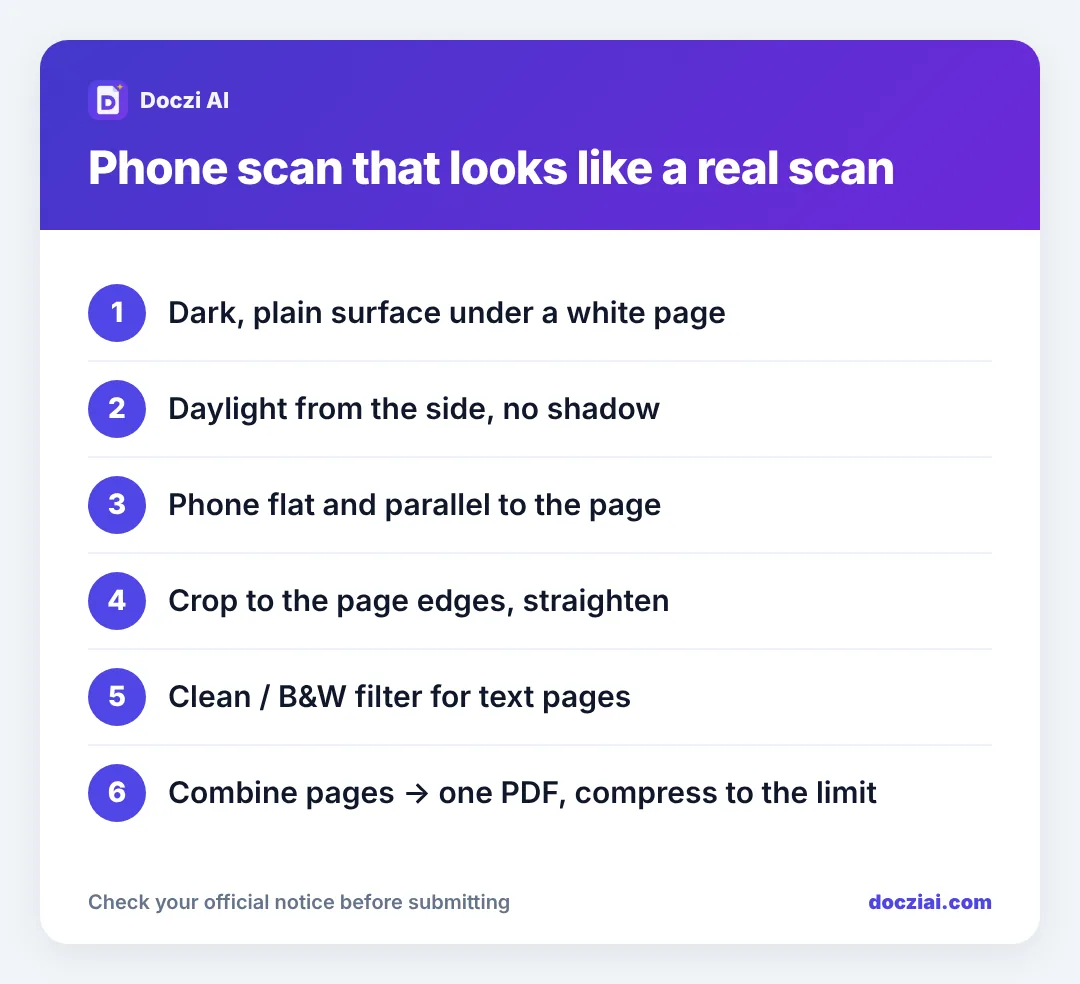
- Background: a dark table, bedsheet or floor. A white page on a white bed is hard to see, both for you and for automatic edge detection.
- Light: daylight from a window at the side. Overhead lights put your phone’s shadow on the page.
- Flat page: press folded certificates under a book for a few minutes first. Folds show as grey lines.
Take the photo
- Hold the phone parallel to the page, not tilted. If you can see one edge of the page much shorter than the other, you’re at an angle.
- Get close enough that the page fills most of the screen, with a little table showing at the edges.
- Tap on the text to focus. Hold still for a second after tapping the shutter.
- Don’t use flash. It creates a bright spot in the middle and washes out stamps.
Crop, straighten and clean
A raw photo has the table around it and the page slightly tilted. Scanner apps find the four corners, flatten the page into a rectangle and whiten the paper. The Doczi AI app does this when you scan with the camera. If you’re sending the file to a print shop through Doczi Drop, the Fix scan button does the same in the browser before you send.
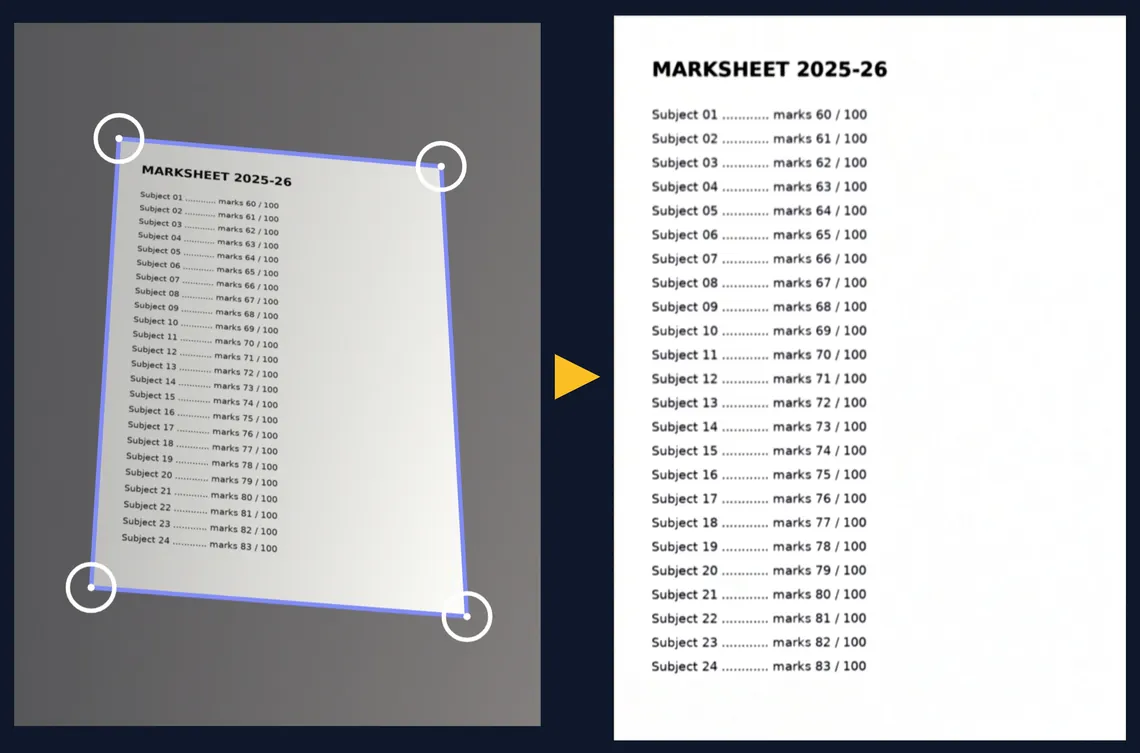
For text pages, a black and white or “clean” filter gives the sharpest text and the smallest file. For certificates with colour seals and photos, keep colour.
Make one PDF
Forms usually want one PDF per document, with all its pages in order. Use JPG to PDF: add the page photos, put them in order, choose A4, and download. If the form has a size limit, use JPG to PDF under 100 KB or compress afterwards with Compress PDF.
Got several separate PDFs (say, 10th and 12th marksheets) that need to be one file? That’s a merge; see one PDF for all marksheets.
Common scanning problems
| Problem | Fix |
|---|---|
| Page looks like a trapezium | Hold the phone flat, or straighten with a scanner app |
| Grey, dull paper | Daylight, then a clean or B/W filter |
| Shadow across the page | Move so light comes from the side |
| Text blurry | Tap to focus, hold still, more light |
| PDF is 10 MB | Compress it; see why scans get so big |
Scanning many pages quickly
For a stack of documents (say, all your semester marksheets), a little routine saves time:
- Lay out a dark cloth near the window and keep it there.
- Photograph every page one after another without checking each shot. Keep the phone at the same height.
- Then go through the photos once, delete blurry ones and retake only those.
- Make one PDF per document, named clearly (10th-marksheet.pdf, sem-3.pdf).
- If a portal wants everything in one file, merge them afterwards.
Doing it in batches is much faster than scan, check, convert, repeat for every page. If the files are going to a print shop rather than a form, see printing documents from your phone.
FAQs
Is a phone scan accepted where a “scanned copy” is asked?
Yes, for online forms a clear phone scan is treated the same as a scanner copy, as long as it’s readable and complete.
Should I scan in colour or black and white?
Text-only pages: black and white. Certificates with seals, photos or coloured text: colour.
Do I need an app?
Not strictly. Careful photos plus JPG to PDF work. An app saves time on cropping and straightening, especially for many pages.
Can I scan both sides of an ID card into one page?
Yes. Take two photos and put them on one A4 page, or make a two-page PDF if the form allows multiple pages.