
Why is my PDF so large after scanning? A scanned PDF is large because each page is a full photo, not text. A phone or scanner stores every page as a high-resolution colour image, often 2–4 MB per page, and the PDF just wraps those images. To shrink it, you compress the images inside: lower their resolution a little and save them with JPG compression. A two-page certificate can usually go from 6–8 MB to under 200 KB and still be perfectly readable.
In this guide
Text PDFs vs scanned PDFs
A PDF made from Word or downloaded from a website stores text as text: letters and fonts. A 10-page document like that might be 100 KB. A scanned PDF stores a picture of each page. Even a page with three lines of text is a full 3000 × 4000 pixel image, with every speck of the paper’s texture recorded.
So when a form says “upload marksheet under 200 KB”, what it really means is “make the pictures inside your PDF smaller”.
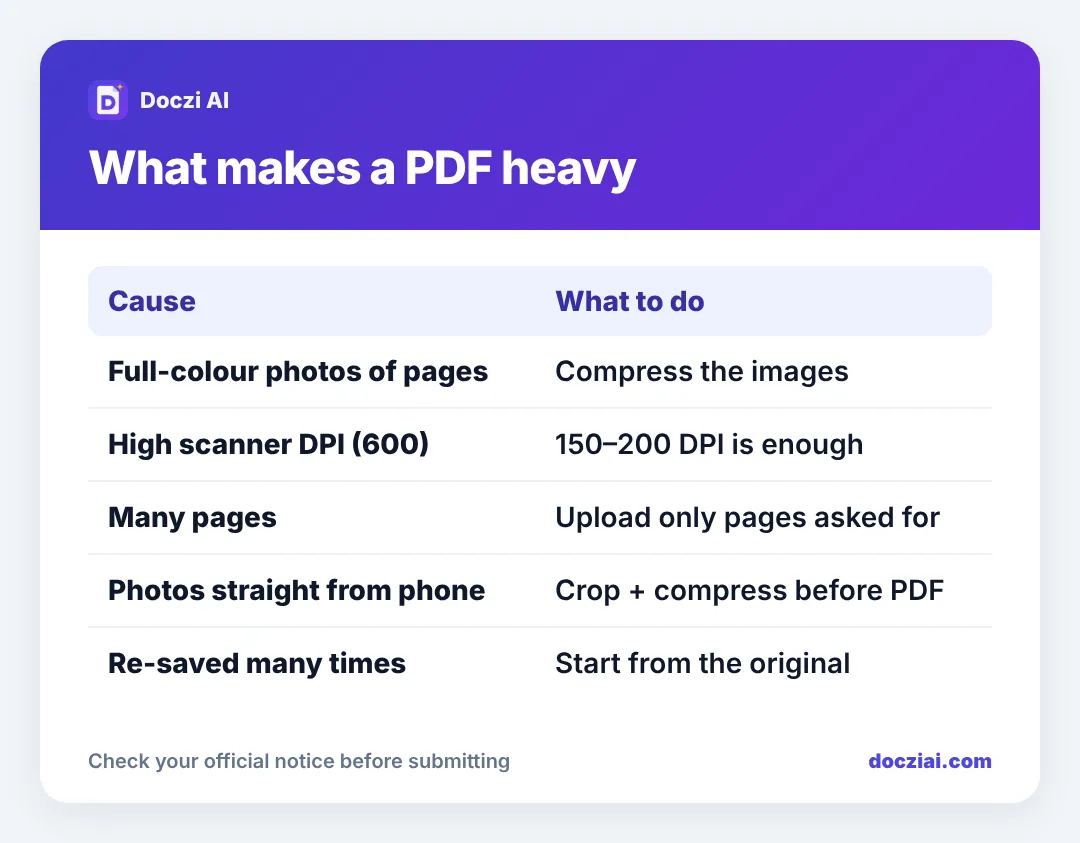
Five reasons your scan is extra heavy
- Colour. A colour page holds three times more information than greyscale. Most certificates read fine in greyscale.
- Scanner set to 300 or 600 DPI. That’s for photos and archiving. Forms need 150–200 DPI.
- Phone photos turned into PDF without compressing. Each 4 MB photo goes in as is.
- Background and shadow. The table, the grey paper, the shadow of your hand: all of that is detail the file has to store.
- Extra pages. The back side of a certificate that’s blank still adds a full page image.
How to shrink it
- Open Compress PDF on your phone or computer.
- Select the PDF. It isn’t uploaded anywhere; it’s processed in your browser.
- Choose Exact size (KB) and type the limit from your form, for example 200. Or pick a level: Light, Recommended, or Strong.
- Press Compress PDF, check the result, and download.
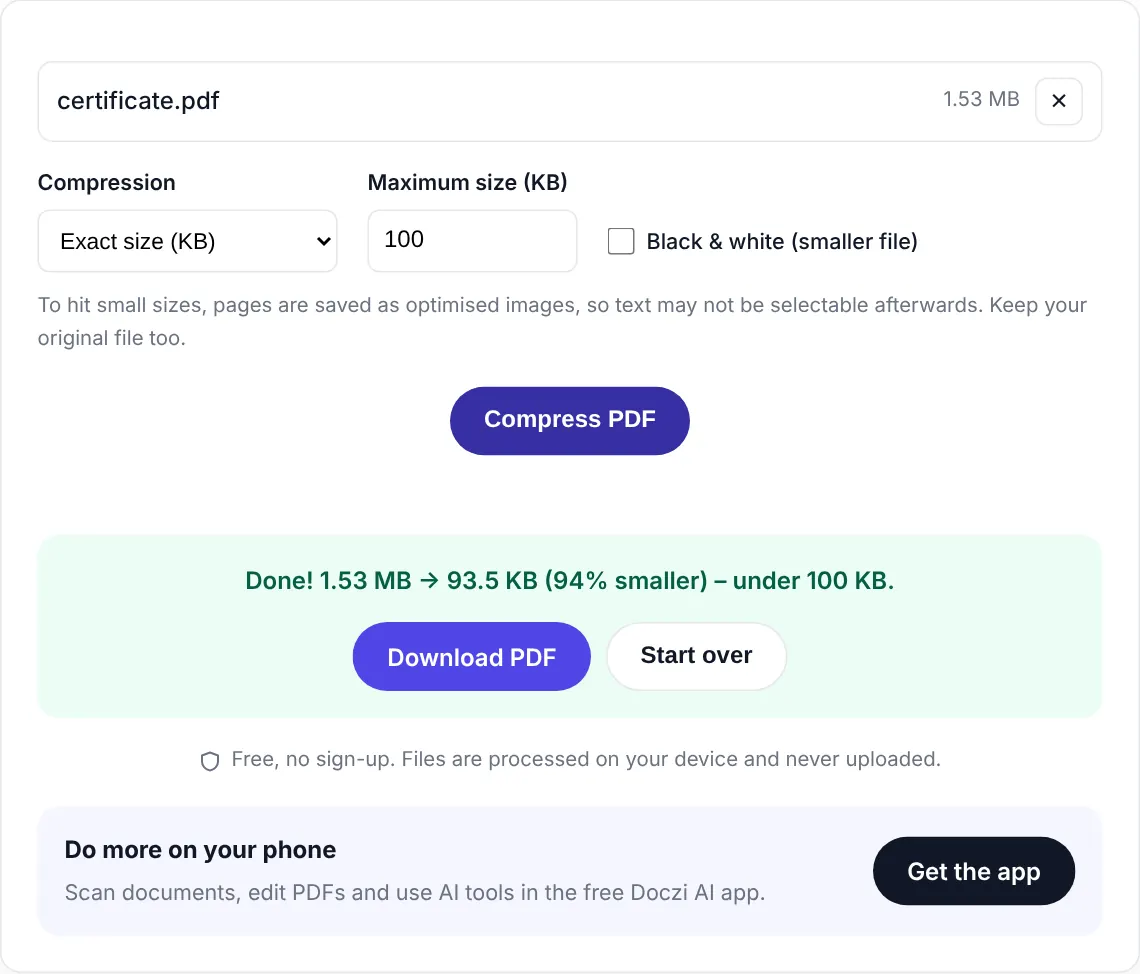
Common targets have their own pages: 100 KB, 200 KB, 500 KB and 1 MB.
Keep it readable
Zoom into the compressed file before uploading. Small print, roll numbers and seals should be readable. If they aren’t, the target is too tight for that many pages. Options:
- Upload only the pages the form asks for.
- Rescan with better light, so there’s less grey noise.
- Crop the photos to the page edges before making the PDF; see scanning documents with your phone.
Start small next time
If you’re making the PDF from phone photos, convert and compress in one go with JPG to PDF under 100 KB. It’s much cleaner than making a 12 MB PDF and squeezing it later.
How small can a page get?
Rough numbers for one A4 page, scanned clearly, after compression with readable text:
| Page type | Typical compressed size |
|---|---|
| Text-only, black and white | 30–60 KB |
| Certificate with a seal, greyscale | 60–120 KB |
| Certificate in colour | 100–200 KB |
| Photo-heavy page (ID card, mark sheet with photo) | 120–250 KB |
Multiply by your page count to see whether a limit is realistic. Four colour pages into 100 KB won’t stay readable; four black and white text pages will. When a form’s limit is tight, upload only the pages it asks for, and use black and white where the notice allows.
FAQs
Does compressing a PDF reduce quality?
It reduces image detail. At sensible targets the text stays sharp. Very tight targets on many pages can blur small print.
Why does the tool sometimes not reach my exact KB?
Every PDF has a minimum below which pages turn unreadable. If it can’t reach the target, upload fewer pages or rescan more cleanly.
Can I compress a password-protected PDF?
Not until the password is removed. See password-protected PDF upload errors.
Is greyscale accepted for certificates?
Usually yes. If the notice says “colour scan”, keep colour and accept a slightly bigger file.