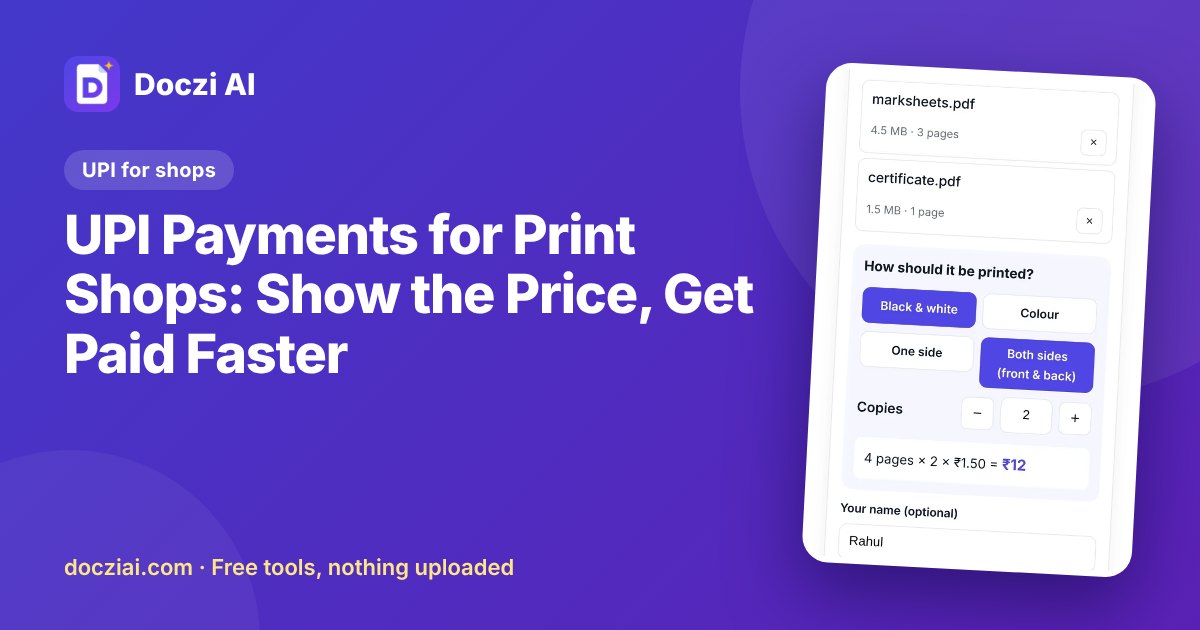
UPI payments for print shops work best when the shop puts its per-page rates and UPI ID into its order screen, so customers see the total before sending and pay from their own UPI app. In Doczi Drop that’s the Print rates & UPI payment panel. The money goes straight from the customer’s UPI app to yours; Doczi never touches it and takes no commission. You confirm the payment in your own UPI app and press Mark paid.
In this guide
Why it helps
- Fewer arguments. The customer sees “5 pages × 2 copies × ₹2 = ₹20” before sending, so there’s no surprise at the counter.
- Shorter queue. People pay while waiting instead of at the counter, one by one.
- Less change. No hunting for ₹10 notes for ₹22 bills.
Setting it up
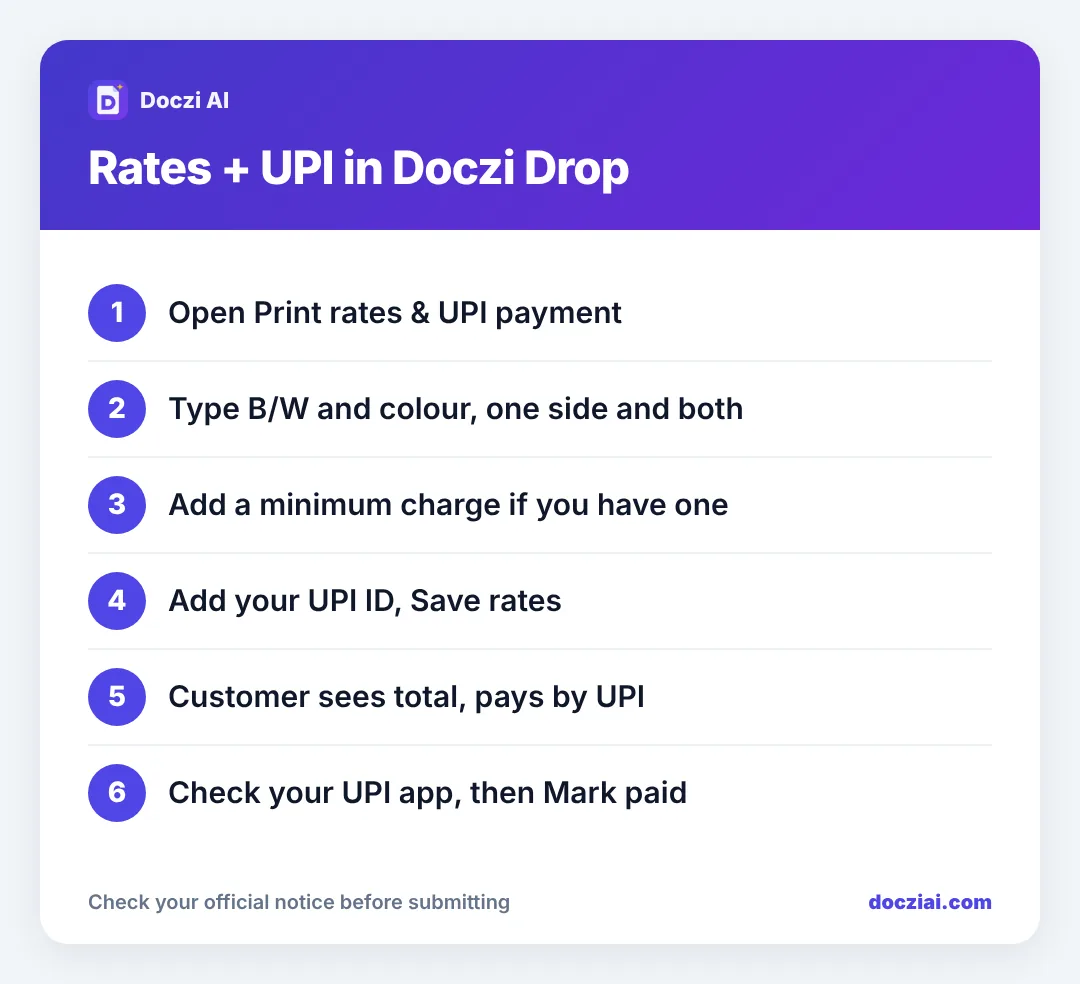
- Open your shop page (docziai.com/drop) on the shop computer.
- Click Print rates & UPI payment.
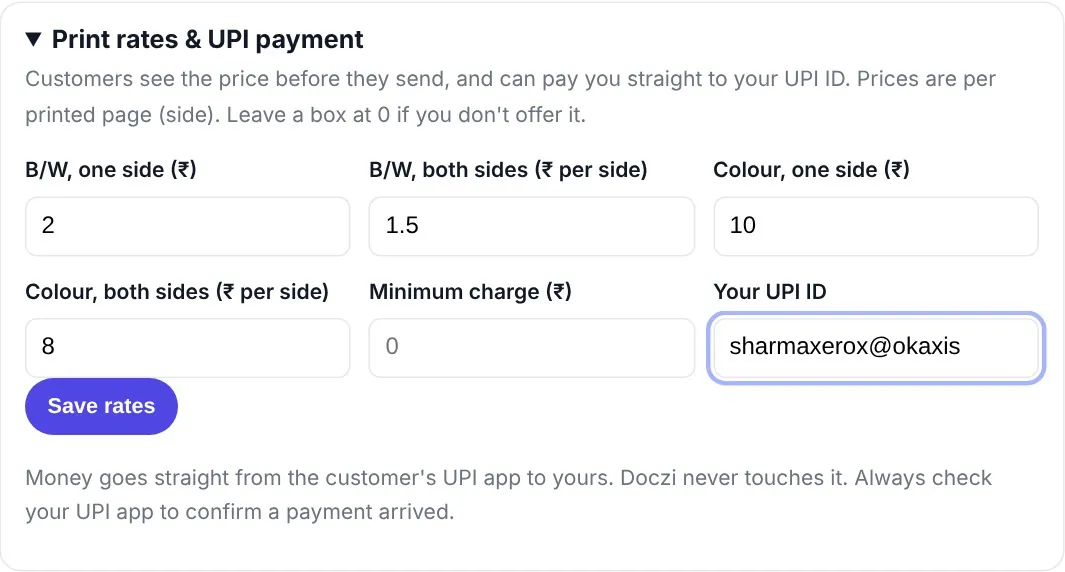
- Type your rates: B/W one side, B/W both sides (per side), colour one side, colour both sides. Leave 0 for anything you don’t offer.
- Add a minimum charge if you have one.
- Type your UPI ID (the one ending in @okaxis, @ybl, @paytm or your bank’s handle). Press Save rates.
What the customer sees
After scanning your QR and choosing files, the customer picks colour or B/W, one or both sides, and copies. PDF and photo pages are counted automatically and the total is shown. After sending, they tap Pay by UPI, which opens GPay, PhonePe, Paytm or their bank app with your UPI ID and the amount filled in. Or they choose to pay at the counter.
Word and Excel files can’t be counted reliably on a phone, so those are priced by you at the counter. More on how prices add up in print cost explained.
Checking payments: always in your own UPI app
Your order screen shows whether the customer chose UPI or cash. That’s their choice, not proof of payment. Before handing over prints:
- Check the payment in your own UPI or bank app, or on your soundbox if you have one.
- Match the amount and the time.
- Then press Mark paid on the order.
Never accept a screenshot of a payment as proof. Fake payment screenshots are a common trick at busy counters.
Which UPI ID to use
A business or merchant UPI ID is best if you have one (it can come with a soundbox and separate statements). A personal UPI ID works too. Either way, it’s the same ID shown on your QR sticker at the counter; customers paying through Doczi Drop just don’t need to scan a second QR.
Setting good rates
A few things shop owners tell us they wish they’d set from day one:
- A both-sides rate. If you leave it at 0, customers can’t choose both sides at all. If you charge the same per side, say so on the counter.
- A minimum charge. For single-page jobs it covers the time spent opening and printing.
- Colour rate per page, not per photo. A full-page colour photo uses far more ink than a coloured logo, but customers understand per-page pricing best.
You can change rates whenever ink prices change; nothing is printed on the poster. For the receiving side of the setup, see receiving files without WhatsApp.
FAQs
Does Doczi charge a fee on UPI payments?
No. Doczi doesn’t receive or hold the money and takes no cut.
Can I change rates later?
Yes, any time, from the same panel. New orders use the new rates.
What if the customer pays a wrong amount?
Settle it at the counter, as with any UPI payment.
Can customers pay cash instead?
Yes, they can choose pay at the counter. Your screen shows which they picked.