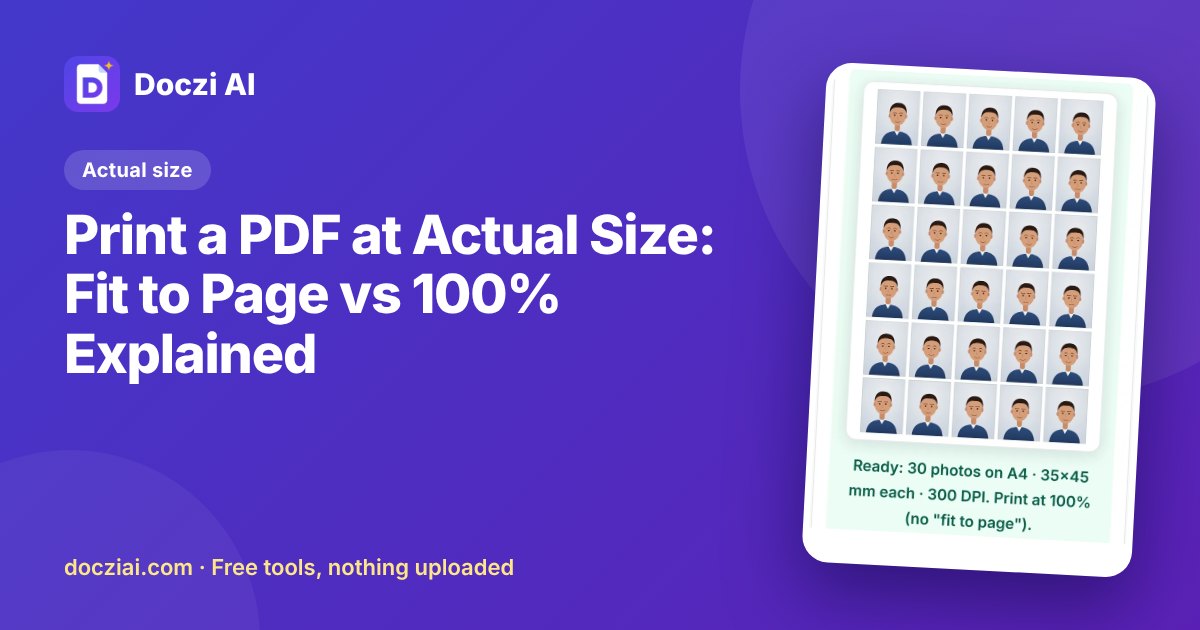
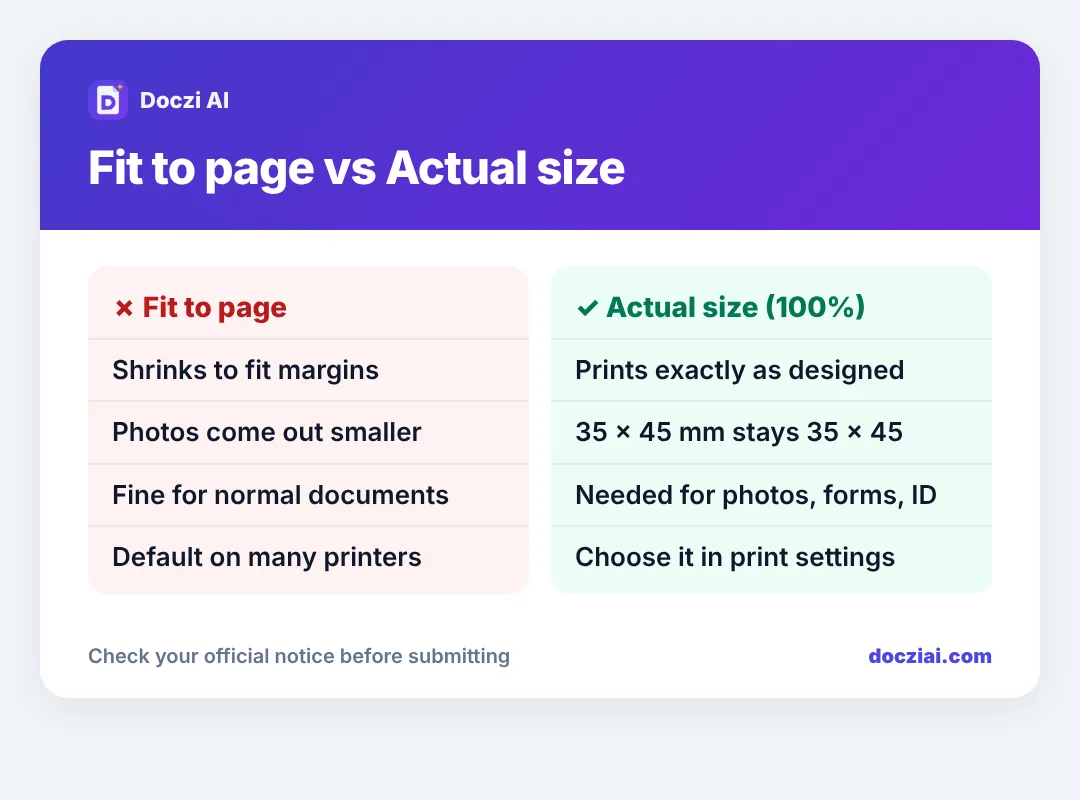
To print a PDF at actual size, choose Actual size or set the scale to 100% in the print window, and turn off Fit to page or Shrink oversized pages. Fit to page shrinks everything slightly to fit inside the printer’s margins, which is why passport photos come out as 33 × 43 mm instead of 35 × 45 mm, and why forms with boxes don’t line up.
In this guide
Why it shrinks
Most printers can’t print right up to the edge of the paper; they need a few millimetres of margin. When a PDF fills the whole A4 page, the print software shrinks it a little so nothing is cut off. That’s helpful for a letter, and a problem for anything that has to be an exact size.
When actual size matters
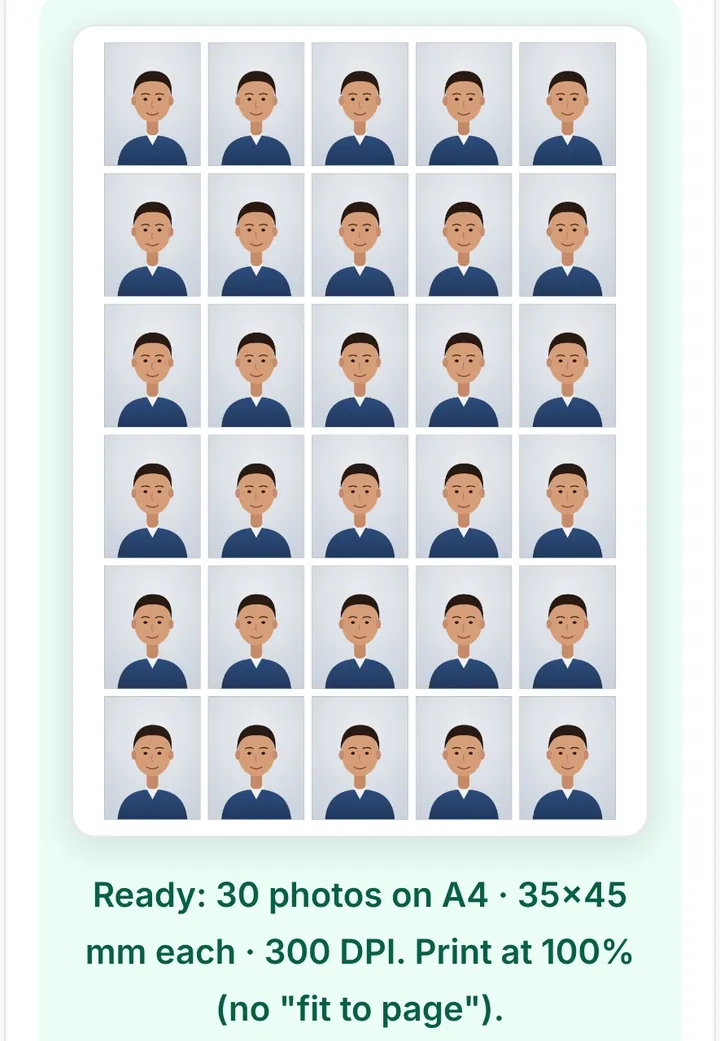
- Passport photo sheets. 35 × 45 mm must stay 35 × 45 mm. Our passport photo sheet maker already leaves margins so the sheet fits at 100%.
- Government forms with boxes that get scanned later.
- ID card designs and cut-outs.
- Maps and drawings with a scale.
For ordinary documents, notes and certificates, fit to page is fine; nobody measures them.
How to set it
Chrome on a computer
Print › More settings › Scale › Custom 100 (or Actual size). Make sure “Fit to printable area” is off.
Adobe Acrobat Reader
Print › Page Sizing & Handling › Actual size.
Windows Photos app (for JPGs)
Choose the photo size option that matches, or uncheck “Fit picture to frame”. For photo sheets, printing the PDF is more reliable than the JPG.
At a shop
Add a note: “Print at actual size / 100%, don’t fit to page”. If you send files through Doczi Drop, write it in the note box so it shows next to your order.
Check the size after printing
Measure one photo with a ruler: it should be 3.5 cm wide and 4.5 cm high. If it’s 3.3 × 4.3, it was shrunk; reprint at 100%. A quick test print on plain paper before using photo paper saves a sheet.
PDF page size matters too
If a PDF was made as US Letter and printed on A4 (or the other way round), it will be scaled. When you make PDFs with JPG to PDF, choose A4 for printing in India.
More on getting photos printed cheaply: 4×6 vs A4 photo prints.
A quick way to check before printing
In the print preview, look at the scale or percentage. If it says something like 94% or 97%, it’s been shrunk. Change it to 100% and look again: if nothing is cut off at the edges, print. If something is cut off (usually only on badly made PDFs that fill the entire page), use “Fit” for that file and accept the small shrink, or remake the PDF with margins.
For forms that you’ll fill in by hand and submit, slight shrinking doesn’t matter. For photos, ID card layouts and anything that will be cut or scanned, it does. If you’re sending files to a shop, note the size requirement; see printing documents from your phone.
FAQs
Will “Actual size” cut off the edges?
Only if the content goes into the printer’s unprintable margin. Well-made sheets leave room for that.
What’s the difference between “Fit” and “Shrink oversized pages”?
Fit scales every page to the printable area; Shrink only scales pages that are larger than the paper. For exact-size work, use Actual size.
Why are my photos fine on 4×6 but small on A4?
Photo labs print 4×6 at native size; A4 printers often default to Fit to page.
Can I set 100% on my phone?
Phone print screens have fewer options and many have no scale setting. For exact sizes, print from a computer or ask the shop to print at 100%.