Most photo upload errors in an online form come down to means one of four things: the file is too big, too small, the wrong shape in pixels, or the wrong file type. The error text usually tells you which. Fix that one thing with a resizer that lets you type the exact pixels and KB, and the form accepts it.
In this guide
- “File size exceeds the maximum limit”
- “File size should be at least 20 KB” (too small)
- “Invalid image dimensions” or “Image should be 200 × 230 pixels”
- “Invalid file format. Only JPG/JPEG allowed”
- “Photo is not clear” or rejected later during scrutiny
- Signature errors
- “Upload failed” with no reason
- Check before you press Submit
- FAQs
Below is every message we’ve seen people get stuck on, what it actually means, and the fix.
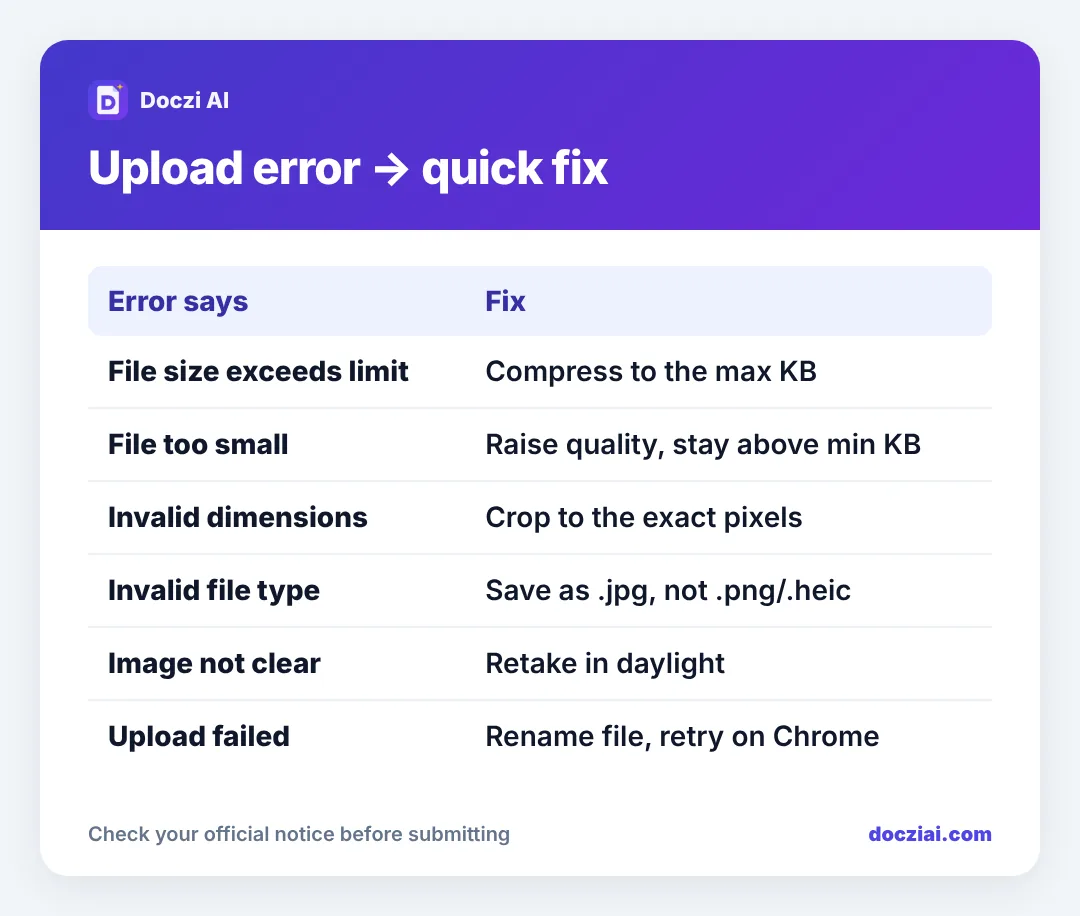
“File size exceeds the maximum limit”
Your photo is heavier than the form allows. A phone photo is 2–5 MB, and many forms cap the photo at 50 KB and the signature at 20 KB. Squeezing a 4 MB file down to 50 KB needs both fewer pixels and stronger compression.
Fix: crop and resize to the form’s pixel size first, then compress to a KB just under the limit. If the limit is 50 KB, aim for 40–48 KB rather than 50.0, because some portals count 1 KB as 1000 bytes and others as 1024. Our photo resizer does both steps together.
“File size should be at least 20 KB” (too small)
This one surprises people. Banking and SSC-style forms often set a minimum as well as a maximum, so an over-compressed 9 KB photo is rejected. Check the range, for example 20–50 KB.
Fix: use a higher quality setting or slightly larger pixels. We explain this properly in how to increase the KB of a photo.
“Invalid image dimensions” or “Image should be 200 × 230 pixels”
The form checks width and height. A photo that is 201 × 230 can fail on a strict portal. Some forms say 3.5 × 4.5 cm instead of pixels, which at the usual 200 DPI works out to 276 × 354 pixels.
Fix: crop to the exact pixel size. Don’t stretch the photo to fit; crop it, so your face keeps its normal shape. Read resizing to exact pixels without stretching if your photo comes out squashed.
“Invalid file format. Only JPG/JPEG allowed”
iPhones save photos as HEIC, and screenshots are PNG. Most Indian government portals only take .jpg or .jpeg (they’re the same thing).
Fix: run the photo through the resizer; it always saves a JPG. On an iPhone you can also change Settings › Camera › Formats to “Most Compatible” so new photos are saved as JPG. More detail in JPG vs JPEG vs PNG for forms.
“Photo is not clear” or rejected later during scrutiny
Some forms accept the file and reject it days later after a manual check. The usual reasons are a dark or blurry face, a coloured or cluttered background, sunglasses, a cap, or a photo of a printed photo with glare on it.
Fix: retake it facing a window in daylight against a plain light wall. Our guide on taking a passport size photo at home covers the setup.
Signature errors
Signature uploads fail for the same reasons, plus two of their own:
- Signature in capital letters. Bank exams in particular reject a signature written in block capitals. Sign the way you normally do.
- Grey or yellow background. Paper photographed indoors looks grey. The signature tool’s Clean white background option turns it white and makes the ink darker.
Use the signature resizer for these.
“Upload failed” with no reason
This is usually not your photo. Try these in order:
- Rename the file to something short with no spaces, like photo.jpg. Names like IMG-20261028-WA0004 (1).jpg trip some old portals.
- Use Chrome instead of an in-app browser (the one that opens from WhatsApp or Telegram).
- Close other tabs of the same form. Two open sessions can cancel each other.
- Try again after the evening rush. Near last dates, servers slow down between 8 pm and midnight.
Check before you press Submit
After uploading, most forms show a preview. Look at it. If your face is cut off, the photo is sideways, or the signature box shows your photo, fix it now. After final submission, changing it may need a correction window or may not be possible at all; see what to do after a mistake in a submitted form.
FAQs
Why does the form say the file is too big when it shows 49 KB on my phone?
Some phones show KB as 1000 bytes while the portal uses 1024, or the other way round. Keep a margin: 45 KB for a 50 KB limit.
Can I upload a screenshot of my photo?
Better not. Screenshots are PNG, include the phone’s screen resolution, and often have a slight blur. Use the original camera photo.
My photo uploads but appears rotated. What now?
Phones store rotation in hidden data that some portals ignore. Use Rotate in the resizer, save a new JPG, and upload that.
Does the KB limit apply to the signature too?
Yes, separately. Photo and signature each have their own size range; the signature limit is usually smaller, around 10–20 KB.