
A photo blurry after compressing has usually it has been shrunk or compressed more than once, or when the whole picture was shrunk before cropping, so your face ends up with very few pixels. 50 KB is plenty for a sharp 200 × 230 exam photo. Start from the original camera photo, crop to your face first, resize to the exact pixels, and compress only once at the end.
In this guide
Why compression causes blur
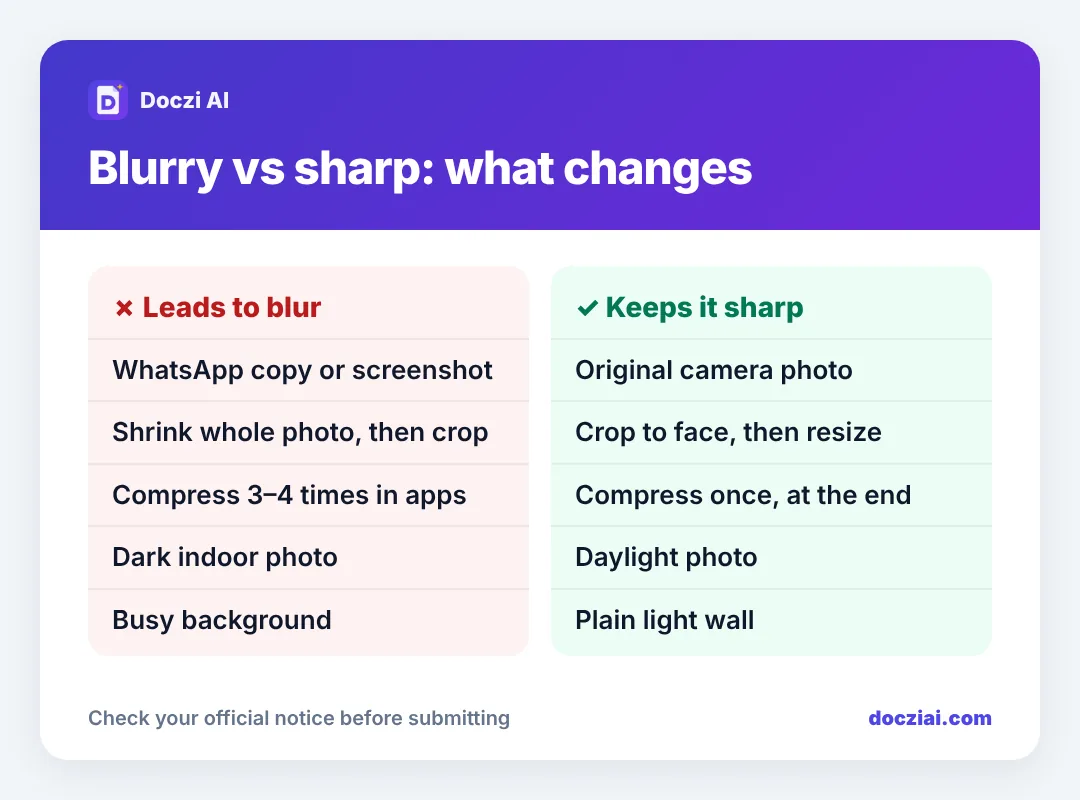
JPG compression saves space by smoothing out fine detail. One round of moderate compression is invisible. Every extra round smooths again, and the damage stacks: soft edges, blotchy skin, square blocks around the hair. A photo that went through WhatsApp, then a gallery editor, then an online compressor has been compressed three times before you even start.
The other cause: too few pixels on your face
If you shrink a full 3000 × 4000 photo to 200 × 230 and then crop out your face, your face might be only 80 pixels wide. Enlarging it back to fill the frame makes it soft. Crop first, so your face uses all 200 pixels.
How to get a sharp photo under 50 KB
- Use the original camera photo. Not a WhatsApp forward, not a screenshot, not a photo of a printed photo.
- Open it in the photo resizer and crop so your face and shoulders fill the frame.
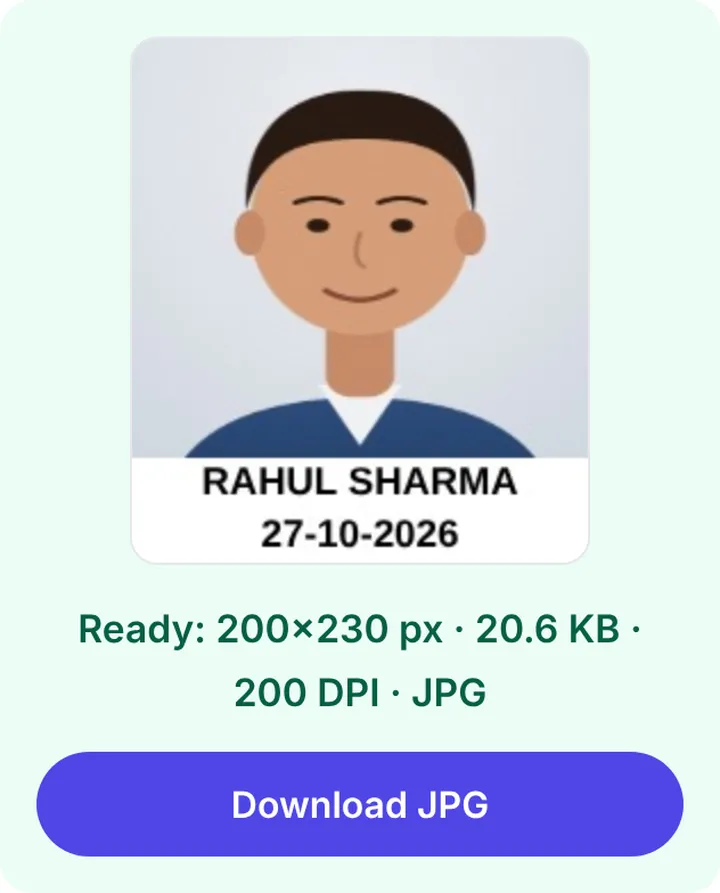
- Set the exact pixels and the KB range your form gives, for example 200 × 230 and 20–50 KB. Our resizer uses the highest quality that still fits the limit.
- Press Make photo once. Download the JPG and upload it. Don’t put it through another app afterwards.
Want a different target? Use resize image to 20 KB, 50 KB or 100 KB.
A sharper photo starts before compression
Compression struggles most with noise: the grainy speckle in dark indoor photos. A photo taken in daylight has less noise, so it compresses cleaner at the same KB. Plain backgrounds help too, because a bookshelf behind you eats up KB that should go to your face. Our guide on taking a passport size photo at home covers the setup.
When the limit is really tight (under 20 KB)
Some forms, like Gujarat OJAS (5–14 KB) or Maharashtra Police (5–20 KB), use small sizes. At 150 × 190 pixels, 14 KB still looks fine if the photo is clean. If the result looks blocky, try ticking Black & white only when the form allows it, or retake the photo against a plainer wall. Never shrink the pixels below what the form asks to save KB; that fails the dimension check.
What about upscaling apps and AI enhancers?
Enhancers can make a blurry face look sharper by inventing detail. For an ID or exam photo that’s a bad idea: the face may not match you exactly, and some forms reject edited photos. A fresh, well-lit photo is always the better fix.
What 20, 50 and 100 KB actually look like
To give you a sense of scale, here’s what a typical well-lit passport photo looks like at different sizes (200 × 230 px unless stated):
| File size | How it looks |
|---|---|
| 8–12 KB | Faint blockiness in hair and background; skin looks smooth and plastic |
| 20–30 KB | Looks normal on screen; fine for every form |
| 40–50 KB | Indistinguishable from the original at this size |
| 100 KB at 276 × 354 | Very sharp; more than enough |
So a 50 KB cap is generous for a small photo. If yours looks bad at 40 KB, the problem started before compression: a dark photo, a WhatsApp copy, or a face that was too small in the frame.
FAQs
Is 20 KB enough for a clear photo?
For 200 × 230 pixels, yes, if the photo is well lit and plain. Bigger pixel sizes need more KB.
Why does my photo look fine on the phone but blurry on the form preview?
Some forms show a stretched preview. Check the downloaded file itself at 100% zoom; if that looks fine, the upload is fine.
Does PNG avoid the blur?
PNG doesn’t blur, but it’s much larger and most forms don’t accept it. A carefully made JPG is the answer.
Can I fix an already blurry photo?
Not really. Go back to the original or take a new photo.