
The quickest way to make a signature background white is to photograph it in daylight and then let a signature tool whiten the paper for you. In our signature resizer that’s the Clean white background option, which is on by default: it pushes the light grey paper to pure white and makes the ink darker, so the signature stays sharp at 10–20 KB.
In this guide
Why white paper looks grey in photos
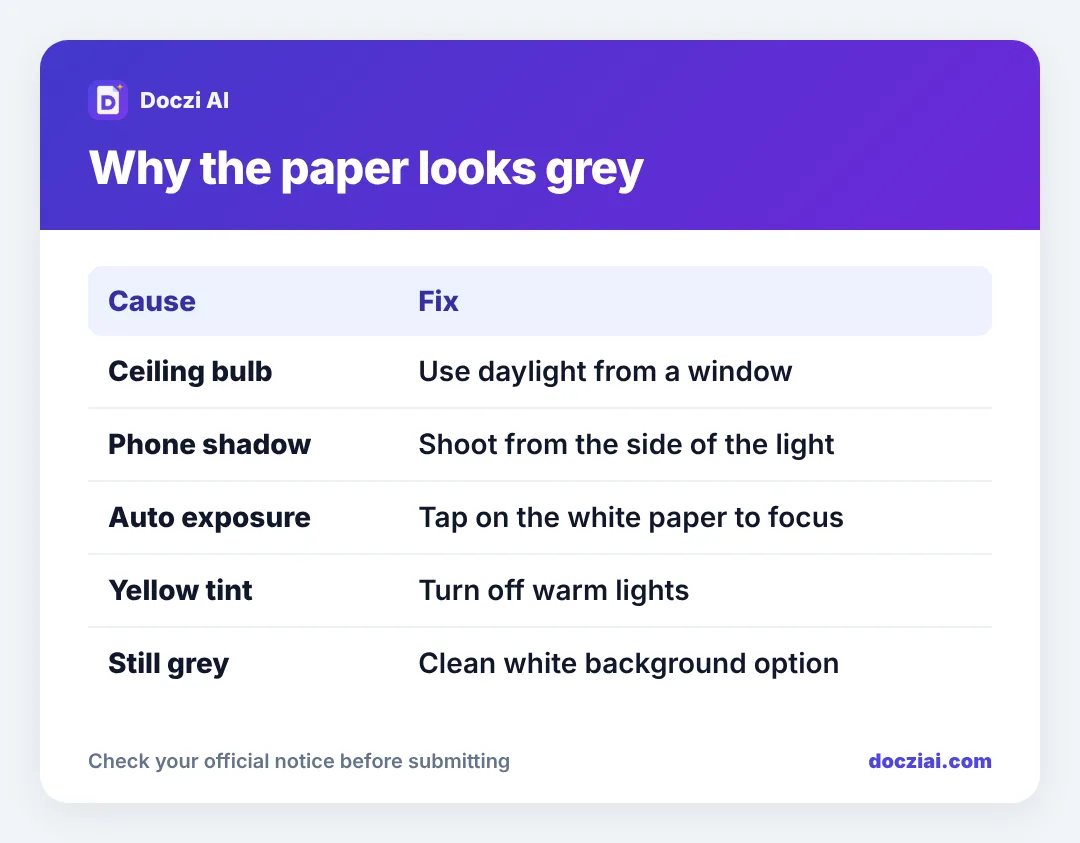
Your phone camera tries to make every photo “medium bright”. A sheet of white paper filling the screen confuses it, so it darkens the whole image and the paper turns grey. Indoor bulbs add a yellow or orange tint on top. That’s normal, and it’s why your signature looks fine on the paper and dull on screen.
Fix it at the photo stage first
- Use daylight. Sit next to a window instead of under a tube light or bulb.
- Keep your shadow off the paper. If the light is above you, your phone and hand block it. Stand so the light comes from the side.
- Tap on the white paper (not on the ink) before taking the photo. On most phones this brightens the exposure. You can also drag the little sun icon up a bit.
- Fill the frame with paper. If the table shows in the corners, the camera balances for the table instead.
Then clean it in one step
Open the signature resizer and select the photo. Crop around the signature with a small margin. Leave Clean white background ticked and press Make signature. You’ll see the result before downloading.
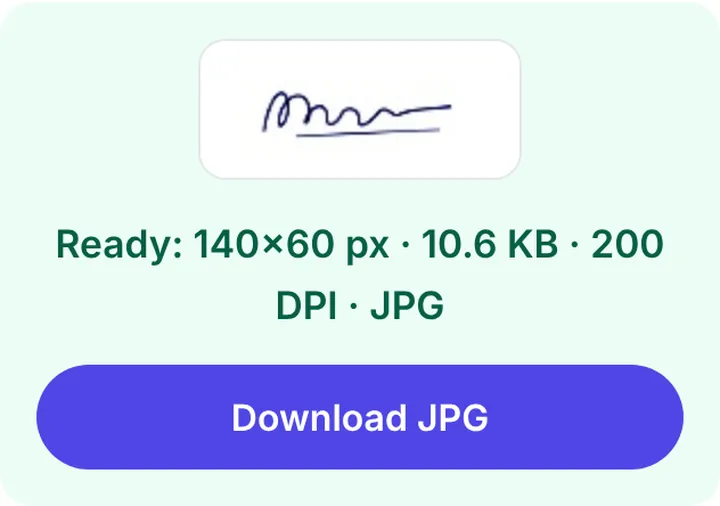
If the form asks for a black and white signature, tick Black & white as well. It removes any blue tint from the ink. Check the notice first; a few forms prefer the original ink colour.
The same clean-up works for the left thumb impression and the handwritten declaration that bank exams ask for. See left thumb impression upload and handwritten declaration upload.
What if the paper has lines or a printed pattern?
Cleaning makes the paper white, but it won’t remove printed lines or text, because they are ink too. Sign again on plain paper. It’s faster than trying to erase lines in an editor.
Should I remove the background completely (transparent PNG)?
For government and exam forms, no. They want a JPG, and JPG can’t be transparent. A white background is what they expect. Transparent PNG signatures are for adding your signature onto documents, which is a different task.
Signs the result is good
- The paper is evenly white, with no grey corner.
- Every stroke is visible, including the light ones at the start and end of letters.
- The signature fills most of the image width.
- File size is inside the form’s range, often 10–20 KB.
If strokes look broken, the pen line was too thin. Re-sign with a medium-tip black pen; our guide on signing on paper for upload covers pens and size.
A quick before-and-after test
Not sure your signature is clean enough? Open the finished file on your phone and zoom in to 100%. Then ask three questions:
- Is the area around the signature one even white, or can you see a grey corner or the edge of the paper?
- Can you see every stroke, including the tail at the end?
- Does the signature reach close to the left and right edges of the image?
Three yeses means it’s ready. If the edge of the paper or a finger shows in a corner, crop tighter. If strokes have gaps, the ink was too light; sign again with a fresh pen. And if the whole image looks greyish even after cleaning, the original photo was very dark. Retake it next to a window rather than trying to brighten it later.
This test takes ten seconds and catches nearly every problem a reviewer would notice.
FAQs
Can I whiten the background in my phone’s gallery editor?
You can raise brightness and contrast, but it often fades thin strokes. The signature tool whitens the paper while keeping the ink dark, which is harder to do by hand.
Is a scanned signature better than a phone photo?
A scanner gives even lighting, so yes, slightly. A daylight phone photo cleaned with the tool is good enough for every form we’ve seen.
My signature is in blue ink. Is that a problem?
Only if the notice says black. Tick Black & white to turn it black.
Why is my cleaned signature only 4 KB?
Clean black-on-white images compress very small. If the form wants at least 10 KB, set Min KB to 10 and the tool brings the file up to that size without changing how the signature looks.