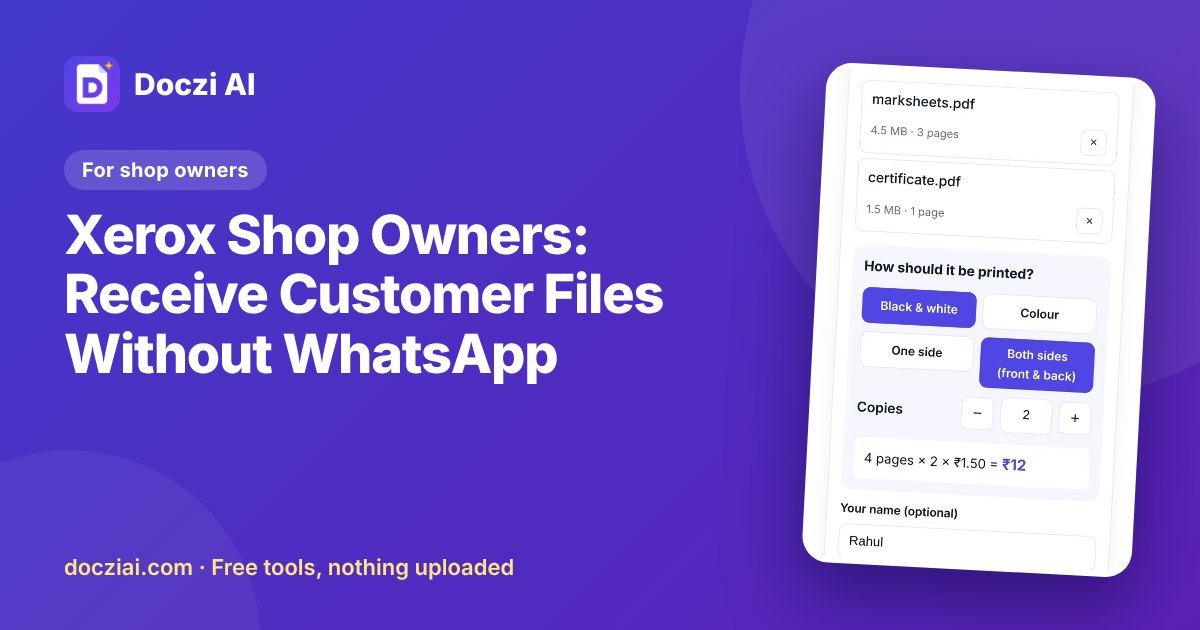
A xerox shop can receive customer files without WhatsApp by showing a QR code that opens an upload page on the customer’s phone, with the files arriving directly on the shop computer. With Doczi Drop, you open the page on your shop PC, fill in your shop details once, print the QR poster and stick it on the counter. Customers scan, choose files and press Send. You get each order with a token number, the customer’s name, their note and the price. It’s free for shops.
In this guide
The WhatsApp problem you already know
- Every customer has to save your number, or you save theirs.
- Your phone storage fills with PDFs and photos of strangers’ documents.
- You move each file to the computer through WhatsApp Web or a cable, while the queue grows.
- Customers send “hi” at 10 pm, and your personal number becomes the shop’s helpline.
How it works
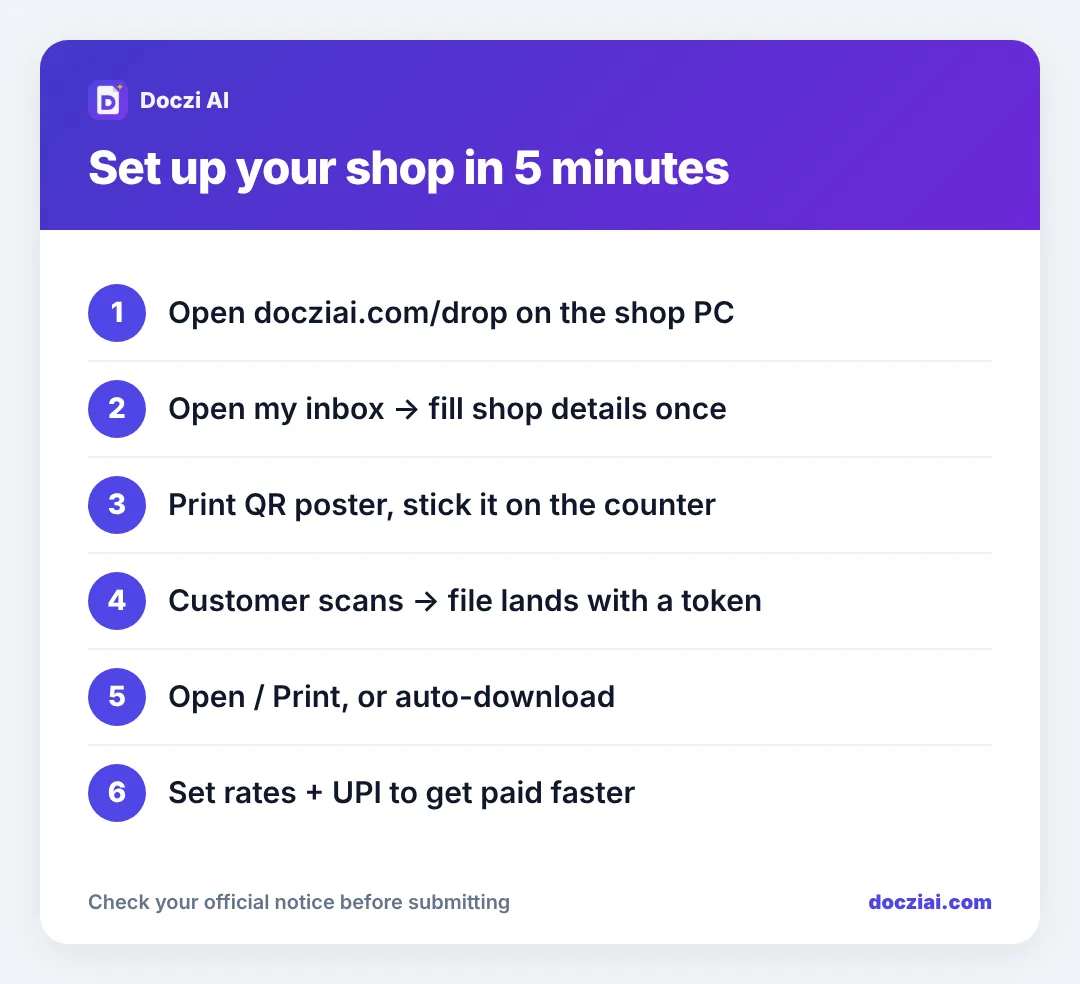
One-time setup (about five minutes)
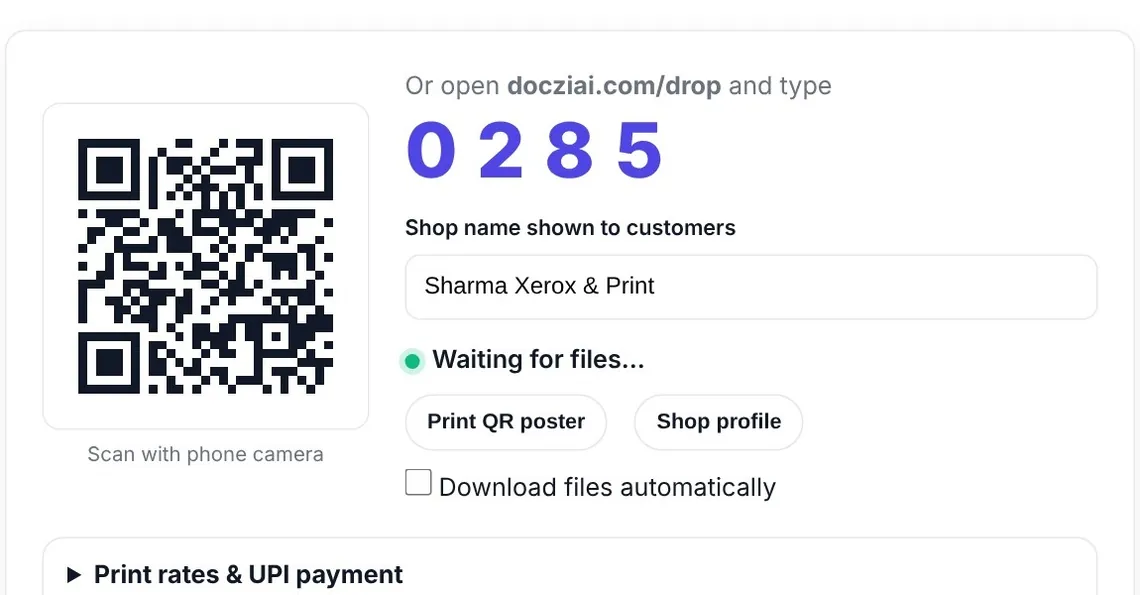
- Open docziai.com/drop on the computer next to your printer.
- Press Open my inbox and fill in your shop name, your name, mobile, city and area. Your mobile isn’t shown to customers unless you choose to.
- Press Print QR poster and stick it where customers stand.
Every day
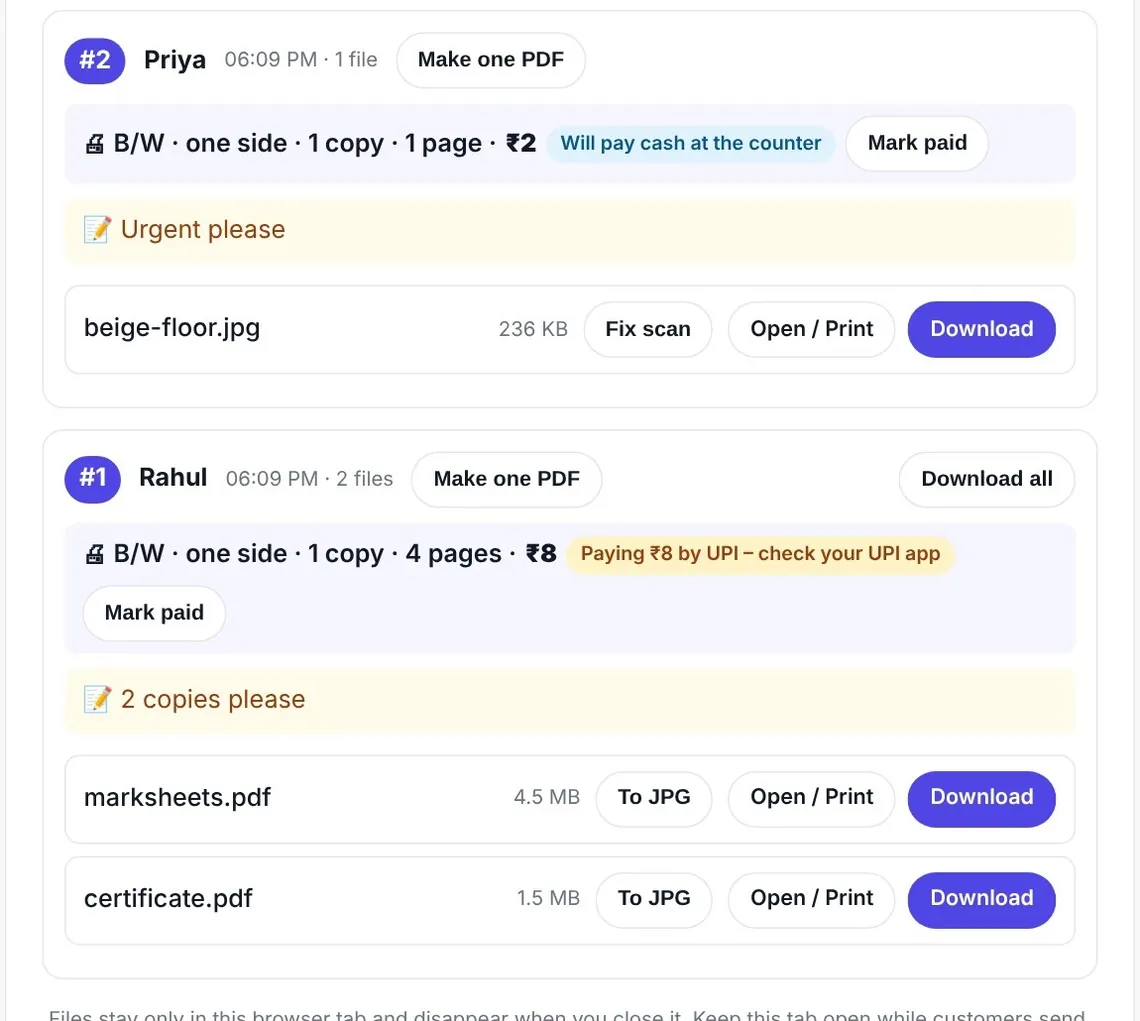
Open the page in the morning and keep the tab open. When a customer sends files, you hear a ping and the order appears at the top with a token number. Press Open / Print or Download. Tick Download files automatically if you want everything to land in your Downloads folder by itself.
Extras that save time
- Fix scan: a crooked phone photo of a document becomes a straight, clean A4 page in one click. Less ink, fewer reprints. Details in fixing tilted document photos.
- Make one PDF: puts all of a customer’s photos and PDFs into one A4 PDF in order.
- To JPG: turns each page of a PDF into an image, handy for ID card printing.
- Rates and UPI: type your per-page prices and UPI ID; customers see the total before sending and can pay by UPI. See UPI payments for print shops.
A typical day with the QR on the counter
Morning: open the page on the shop computer; the QR and your 4-digit code are already there. A student scans the poster, sends three PDFs with the note “2 copies, both sides”, and pays by UPI while waiting. You hear the ping, see token #1 with the price, and press Open / Print. Next, a customer sends a crooked photo of a marksheet; you press Fix scan, choose Black & white, and print a clean page.
By evening you’ve printed dozens of orders and your phone still has nothing in its gallery. Close the tab when you shut the shop; the files go with it. Tomorrow the same QR works again.
Want to know what your customers see on their side? The customer checklist walks through it.
Common questions from shop owners
Do I need to install software?
No. It runs in Chrome or Edge on your shop computer. Keep the tab open while the shop is open.
Does the QR change every day?
No. On the same computer and browser, your QR and link stay the same, so the printed poster keeps working.
What if the internet is slow?
Files go directly from the customer’s phone to your computer when possible, so it’s usually faster than WhatsApp. Large files take as long as any upload on your connection.
Who can see the files?
Only your shop’s open tab. When files pass through our server (some mobile networks block direct connections), they’re encrypted on the customer’s phone and deleted once your computer receives them.
Is it really free?
Yes. No sign-up fee, no commission on payments; customers pay you directly.
Tell your customers
A line on the poster does most of the work. Say it once at the counter too: “Scan this, send your files, no need for my number.” Within a week regulars start doing it on their own, and they can save your shop on their phone so they don’t need to scan again.
Starting a new shop? Our xerox and online form shop checklist covers equipment and services.